
Table of Contents
Add Look Ahead to Any Dynamics FX with a Sidechain
By Craig Anderton
When a dynamics processor (compressor, limiter, gate, etc.) needs to respond to peaks, processing can’t begin until audio exceeds a threshold. By then, it’s too late to catch an attack’s transient. So, transients may get through, and introduce pops.
To solve this problem, DAWs often include processors with look ahead. This feature analyzes the incoming signal in real time, but delays the audio you hear by a few milliseconds. So, the analyzed signal gives the processor advance notice of when to process the slightly delayed audio.
Look ahead’s tradeoff is that all tracks need the same amount of delay as the maximum amount of look ahead that applies to a processor. A DAW’s Plug-in Delay Compensation (PDC) feature ensures all tracks remain in sync. However, PDC is part of a DAW’s audio engine, and third-party plug-ins typically can’t tie into PDC. But no worries—with this tip, you can add look ahead for any sidechain-capable dynamics processor, with any DAW.
Hearing is Believing When Your Add Look Ahead to Any Dynamics FX with a Sidechain
Compressor without look ahead.mp3: This lacks look ahead, so the guitar note attacks create pops. Although the audio is peak-normalized, it sounds soft. The pops are so loud, they already use up the available headroom:
Same audio with look ahead.mp3: Although also peak-normalized, this uses look ahead to eliminate the nasty pops. Quite a difference!
Look Ahead Process Overview: Add Look Ahead to Any Dynamics FX with a Sidechain
This process requires two tracks:
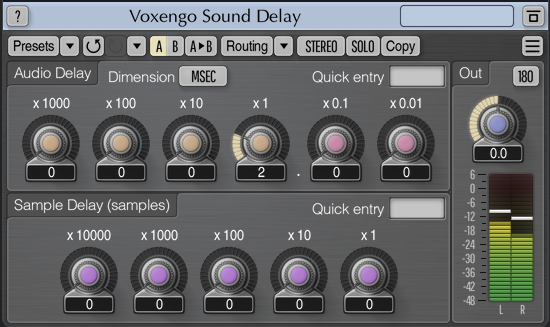
- A bus with a delay plug-in (fig. 1), followed by the sidechain-capable dynamics processor you want to use. The delay should be delayed sound only, with no modulation. Start with 2 ms delay or so. The bus’s fader sets the processed audio’s output level.
- The audio track you want to process. It has two pre-fader One pre-fader send goes to the bus. One goes to the dynamics processor’s sidechain. Turn the audio track’s channel fader all the way down.
Voxengo’s Sound Delay plug-in is free and does what we need. However, your DAW probably includes a suitable delay.
Next, let’s look at typical setups for Pro Tools, Cubase, and Fender Studio Pro.
Pro Tools Setup to Add Look Ahead to Any Dynamics FX with a Sidechain
Referring to fig. 2, the output from the track to be processed goes to a Bus (in this case, Bus 7). This feeds an Aux Input track’s audio input. The Aux Input has a compressor inserted. The same Bus that provides the audio output provides the compressor’s sidechain signal. A Time Adjuster plug-in before the compressor provides the necessary short delay.
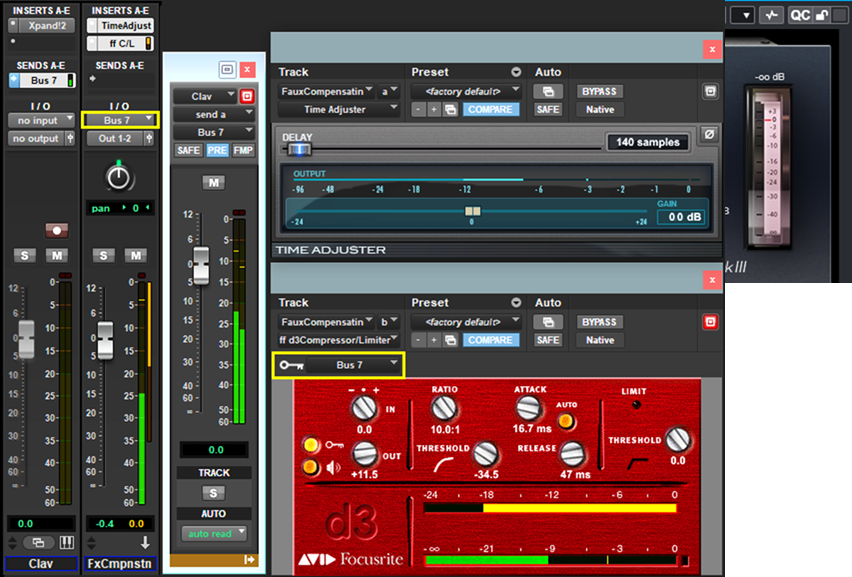
The following relates samples rates to the Time Adjust settings for a 2 ms delay:
44.1 kHz, 88 samples
48 kHz, 96 samples
88.2 kHz, 176 samples
96 kHz, 192 samples
192 kHz, 384 samples
This accomplishes our goal. The audio applies compression to the processor’s sidechain 2 ms before the audio enters the processor.
Steinberg Cubase Setup to Add Look Ahead to Any Dynamics FX with a Sidechain
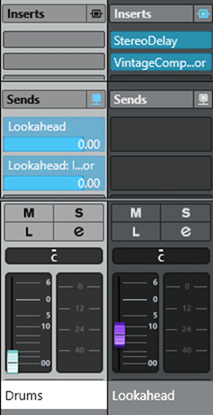
Referring to fig. 3, two sends go from the Drums track—one to the Lookahead bus input, the other to the Vintage Compressor’s sidechain.
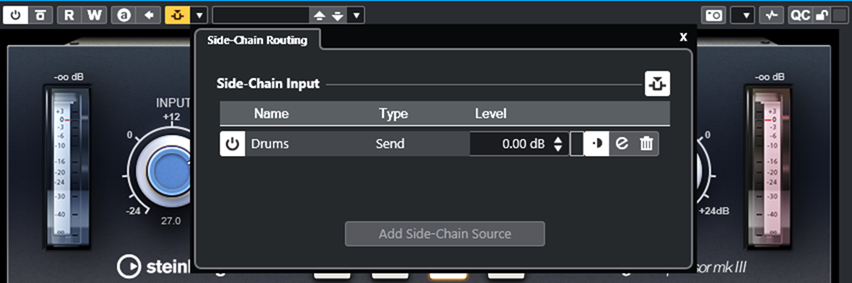
Activate the Vintage Compressor’s sidechain, and choose the Send’s source (fig. 4). In this case, we want the Drums track. Cubase will create a Send automatically. However, change it to pre-fader either before clicking on Add Side-Chain Source, or in the MixConsole after creating the Send.
Fender Studio Pro Setup to Add Look Ahead to Any Dynamics FX with a Sidechain
As an example, we’ll use Studio Pro’s Fat Channel plug-in. This is the same as the Fender StudioLive series mixers’ Fat Channel strip. It has several dynamics processors, but no look ahead function. Fig. 5 shows the console layout to implement look ahead.
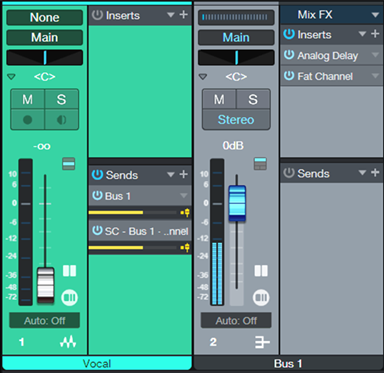
The Vocal track supplies Bus 1 with audio, and it’s delayed by 2 ms. Meanwhile, the Vocal track also feeds the Fat Channel’s sidechain in real time. So, the compressor is already starting to compress when a transient hits 2 ms later.
General Tips: Add Look Ahead to Any Dynamics FX with a Sidechain
Use the minimum delay needed for look ahead (typically 1 to 2 ms). Some CPU-intensive plug-ins require longer delays. Tip: If latency in a session seems to increase for no apparent reason, there may be a plug-in with significant look ahead. The added latency is due to PDC delaying all the other tracks to compensate.
With look ahead, you can record in real time. However, the sound you hear will be delayed by the look ahead time. There’s no way around this when recording. However, there are two workarounds when mixing. If the delay is bothersome compared to other tracks:
- Solo the audio track, then export a mixdown to create a version of the audio track that includes the dynamics processing. Import the track into the session, and move the imported track earlier by the amount of time used for look ahead. Use the imported track in place of the original track.
- Instead of delaying the audio signal, move the control signal earlier. To do this, copy the track you want to process. Move it earlier by 2 ms, and then feed the output from the copied track into the dynamics processor’s sidechain.
Craig Anderton is a music industry legend—from his teenage touring years, to production and mastering projects for artists from classical to hardcore, to his current work in disrupting the publishing industry. Recent e-books include Innovative Techniques for Pro Tools, The Huge Book of Studio One Tips & Tricks, The Big Book of Cubase Tips & Tricks, The Ultimate Guide to Vocal Production, and How to Record and Mix Great Guitar Tracks. Visit his free educational website at craiganderton.org, and hear Craig’s latest music releases on his YouTube channel.
If you need a great PC to help you Add Look Ahead to Any Dynamics FX with a Sidechain in your DAW, make sure to check out the line of RokBox Pro Audio PCs from PCAudioLabs. We’ve been building great PCs for music production for over 25 years, and we’re confident we can provide you with a PC that will give you the best experience you’ve ever had when producing music on a computer!
Click here to view PCAudioLabs PCs.