
How to Compile Takes using Playlists in Pro Tools
This blog is part of our new series of tutorials based on Avid’s flagship Digital Audio Workstation, Pro Tools.
Want to learn how to use Avid Pro Tools in real time, with a professional digital audio trainer? It’s faster than blogs, videos, or tutorials. Call OBEDIA for one on one training for Avid Pro Tools and all digital audio hardware and software. Mention this blog to get 15 bonus minutes with your signup! Call 615-933-6775 and dial 1, or visit our website to get started.
Need a Pro Audio laptop or Desktop PC to run Avid Pro Tools software and all of its features at its best?
Check out our pro audio PCs at PCAudioLabs.
Getting started with how to Compile Takes using Playlists in Pro Tools
Pro Tools is a software that lets you produce, record, edit and mix audio as well as MIDI performances.
When we are recording instruments, chances are we will need to record more than one take for each part, especially because we as musicians tend to interpret our instrument differently every time.
When we use Playlists, we can record different takes of the same interpretation.
Now, we might find ourselves in situations in which we need to use different parts from different playlists in order to create a “perfect” take. This is what we call a “compiled take”.
Pro Tools lets us copy parts from different playlists and paste them on a single blank playlist to create this compiled take very easily.
Today we will learn how to compile using Playlists Playlists.
For the purpose of this tutorial, we will assume that you already have several playlists already created on your audio track.

In the case of this tutorial, we have a “Guitar” track that contains two playlists (two takes):
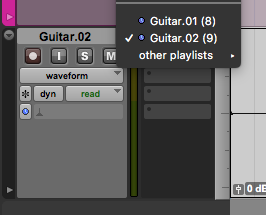
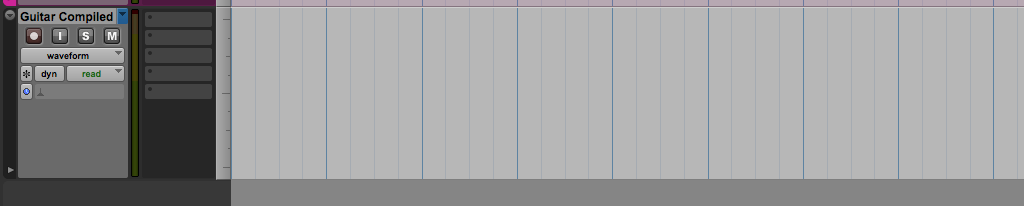
- Create a new playlists and label it as “Guitar Compiled”:
The playlist will appear to be blank:
2. From the track views, click on “Playlists”:
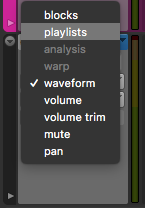
The Playlists view will be shown as:
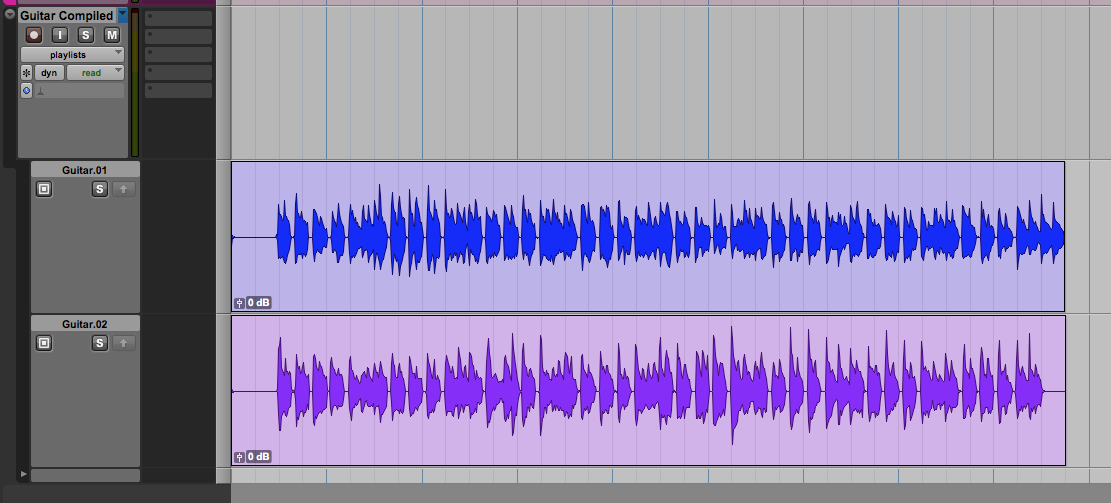
From this view it is easy to note the following aspects:
- The current playlists (Guitar Compiled) is shown on top, blank.
- The previous playlists (Guitar.01 and Guitar.02) are shown below, but they are not active.
This view lets us select the parts from each playlists that we want to copy and paste into the “compiled” playlist and do it with a couple clicks.
3. Click and drag on top of “Guitar.01” playlist to select the desired part that we wish to use from that playlist:

4. Click on the arrow pointing up located right below the playlist name “Guitar.01”:
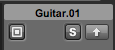
Once done, this function will automatically copy the selected (highlighted) area and paste it on the “Guitar Compiled” playlist as:

Now we can repeat the process for the remaining part of the interpretation that we want to use from the other playlist.
5. Click and drag on top of “Guitar.02” playlist to select the desired part that we wish to use from that playlist:

6. Click on the arrow pointing up located right below the playlist name “Guitar.02”:
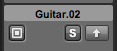
Once done, this function will automatically copy the selected (highlighted) area and paste it on the “Guitar Compiled” playlist as:

7. Enable the “waveform” view on the track again:
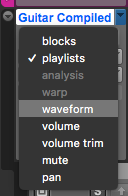
The track will be shown as:
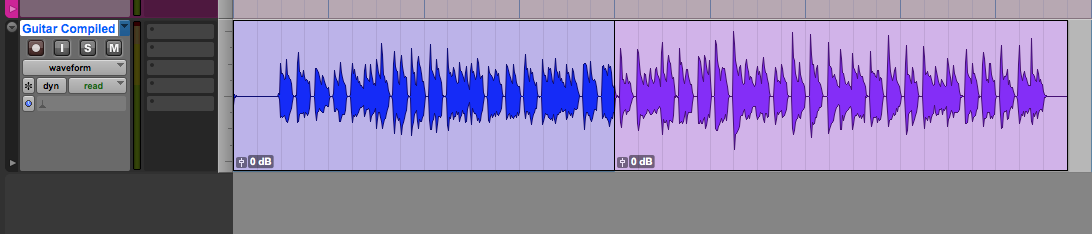
8. Apply the required crossfade between sections:

And that is it! We have successfully created our Compiled Take using Playlists in Pro Tools.
You can now press play and listen to this edited version of the guitars in which we used parts from two different playlists and joined them in a single one.
At this point, we have successfully explained how to Compile Takes using Playlists in Pro Tools.
Using Avid Pro Tools software to produce music would be ideal with one of our professionally designed PCAudioLabs Systems due our high-performance specifications in order to work with any of the Digital Audio Workstations supported. If you would like to order one of our PCAudioLabs computers, please call us at 615-933-6775 or click this link for our website.