
Table of Contents
How to use Accusonus DeEsser
We are very happy to announce the start of this new series of tutorials on the plugins included in Accusonus‘ ERA bundle. Today we are going to demonstrate how to use and operate the DeEsser plugin from Accusonus.
Want to learn how to use the Accusonus’ plugins in real time, with a professional digital audio trainer? It’s faster than blogs, videos, or tutorials. Call OBEDIA for one on one training for Accusonus software. Mention this blog to get 15 bonus minutes with your signup! Call 615-933-6775 and dial 1, or visit our website to get started.
Need a Pro Audio laptop or Desktop PC to run Accusonus software and all of its features at its best?
Check out our pro audio PCs at PCAudioLabs.
Getting started with How to use Accusonus DeEsser
The ERA plugin bundle by Accusonus brings you a group of plugin tools that let you quickly repair audio under an easy-to-use graphic user interface.
Today we are going to be working with another plugin included in this bundle, called “DeEsser”.
For the purpose of this tutorial we will be working in Ableton Live as the host application.
-
Open a Live Set that contains at least one audio track with noise that you wish to repair:

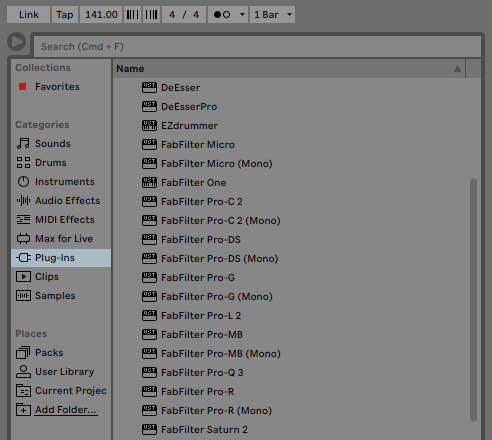
2. From the plugins list, look for Accusonus -> DeEsser:
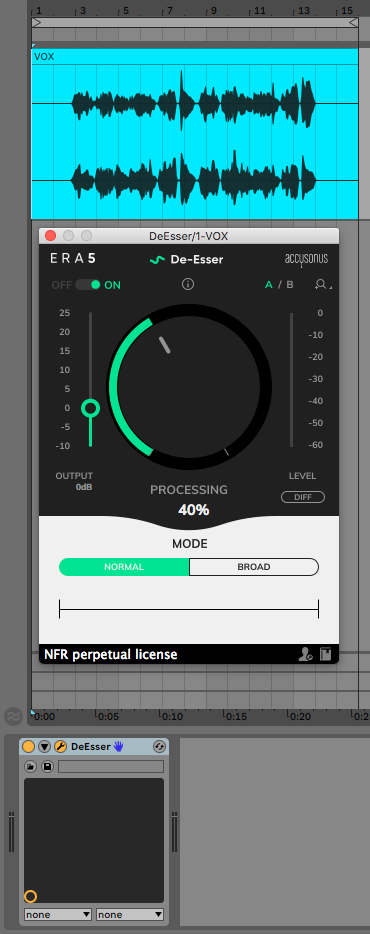
3. Add DeEsser to your audio track:
4. Let’s now focus on the plugin controls:
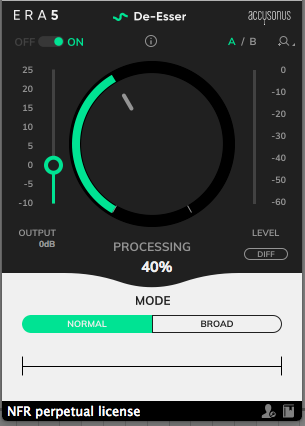
At first, it is easy to see how most of the plugins included in the ERA’s bundle are very simple to use since they are designed under a single-knob operation philosophy.
In the case of the DeEsser, this plugin can remove es-sounding syllables recorded on the track using the different modes, real time processing display and the big knob that controls the amount of reductions.
The specific parameters are:
- A/B Switch: This switch lets you toggle between configuration A and configuration B to easily test and A/B their differences.
- ON/OFF Switch: This switch lets you toggle the plugin ON/OFF. When it is set to OFF, the plugin is completely bypassed.
- Output gain: This slider controls the gain applied to the output of the processor.
- Diff: When this is enabled, you can listen to the “ess” that De-Esser is removing during processing.
- Mode: These selectors let you toggle between the two available modes to fine-tune the processing. Each mode focuses the sibilance-detection and reduction on a specific part of the signal’s frequency spectrum. The available modes are:
- Normal: Designed for most common sibilant vocals.
- Broad: Designed for dealing with harsh sibilants such as heavy sounding “ch” or “sh”.
- Processing knob: This is the big knob located in the middle of the plugin. It controls the amount of processing applied. In the case of this plugin, the processing removes the ess’es from the audio signal.
For the purpose of this tutorial we will use the plugin to remove high frequency noise. The parameters will be:
- A/B Switch: A.
- ON/OFF Switch: ON.
- Output gain: 6 dB.
- Diff: OFF.
- Mode: Normal.
- Processing knob: 44%
5. Apply the previous configurations and the plugin will look like this:

After we playback the track, the vocals have been de-essed!
At this point we have successfully demonstrated How to use Accusonus De-Esser!
Using Accusonus software to produce music would be ideal with one of our professionally designed PCAudioLabs Systems due our high-performance specifications in order to work with any of the Digital Audio Workstations supported. If you would like to order one of our PCAudioLabs computers, please call us at 615-933-6775 or click this link for our website.