
In the days of steam-powered DAWs, channel inserts generally had serial routings. Fortunately, ways to create parallel and series-parallel routings (fig. 1) are becoming more common. These provide more sophisticated processing options:
- A parallel routing splits the signal into two or more parallel paths, and usually mixes them back together. This is a way to layer different, independent effects on a track. The most common use is with compression, to blend a fat, compressed sound with a more dynamic dry sound. Some compressor plug-ins include mix controls to vary the balance of dry and compressed sound. With these, there’s no need to set up a parallel routing in the mixer itself.
- Parallel-series routings combine series and parallel connections, where one or more parallel splits feeds series chains of effects. For example, one split might be compression and EQ, while the other split inserts saturation and delay.

Bus-Based Parallel Effects Routing for DAWs
The most universal way to create parallel effects is with buses. A mixer channel’s send control feeds audio to a separate bus, which holds additional effects. You then mix the original channel and parallel bus’s output together for the final, parallel-processed sound. However, different DAWs handle where sends pick off audio from the main mixer channel differently. Options are:
- Pre- or post-fader. Most DAWs offer this. For example, suppose reverb is in a different bus. A pre-fader send from the main channel sends audio to the reverb, regardless of the main channel’s fader position. When you fade out the main channel, as long as there’s audio going through the main channel—even if you can’t hear it—the reverb will continue generating reverb. With a post-fader send, the audio going to the reverb depends on the main channel’s fader position. When you turn down the main channel, you turn down the audio going to the reverb.
- Pre- or post-insert effects. A pre-inserts send feeds a dry signal to the bus, which is not processed by the main channel’s insert effects. This allows having an unprocessed dry signal in parallel with a bus that has multiple processors. A post-inserts send feeds audio already processed by the insert effects to the bus. You would use this if, for example, you’ve set up a strong foundation with EQ and dynamics in the main channel, and want to process that sound with ambience processors in the bus.
The following summary covers send options for different DAWs for parallel effects routing for DAWs:
- Pro Tools, Digital Performer. Sends are post-fader and post-insert by default. Setting a send to pre-fader also makes it pre-insert
- Logic Pro, Cubase, Fender Studio Pro (née Studio One). Sends are post-insert/post-fader by default, but can switch to pre-fader. In all cases, they remain post-insert.
- Ableton Live. Sends are always post-fader/post-insert unless you use routing tricks (e.g., Utility racks or parallel chains, as described later).
If pre-insert sends are necessary but not available, there’s a simple workaround: don’t insert any effects in the main channel. Send pre-or post-fader audio, which serve the purpose of pre-insert sends, to buses that incorporate the desired insert effects.
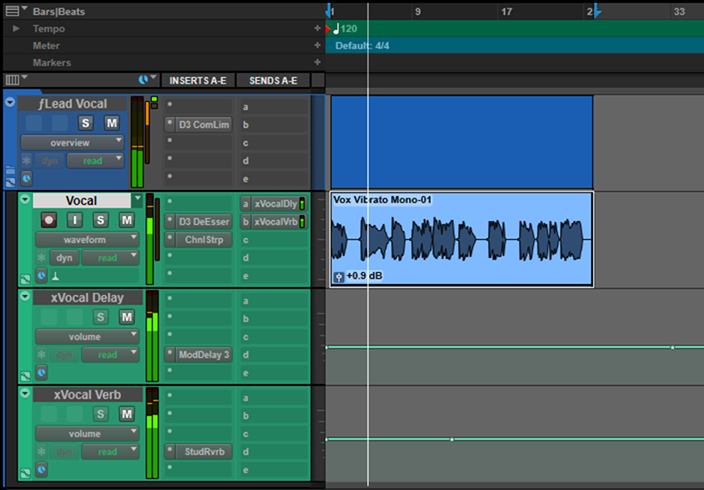
Fig. 2 shows a parallel processing setup in Avid Pro Tools. The main vocal track has two inserts (De-Esser and Channel Strip) and two post-fader sends that go to two Aux Input tracks, which act like buses. These provide Delay and Reverb with independent levels. All three tracks are contained in what Pro Tools calls a Routing folder track, because it can process the tracks contained in the folder, not just organize them. In this example, the D3 Compressor/Limiter is compressing all three vocal tracks.
Single-Channel Parallel Track Architectures in Parallel Effects Routing for DAWs
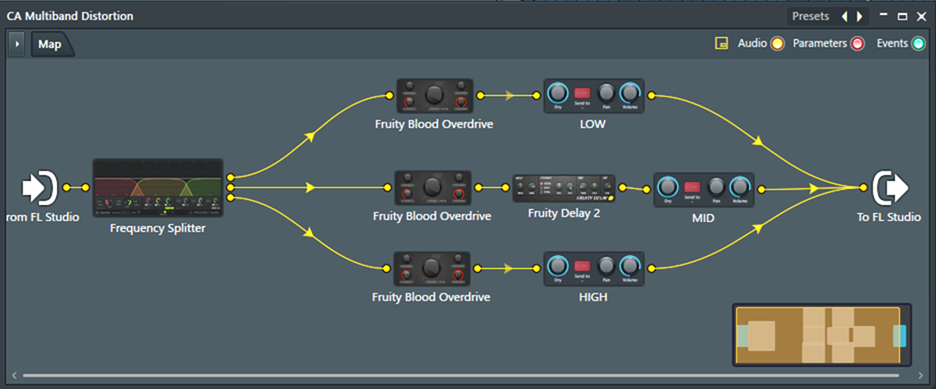
Fender Studio Pro (fig. 3), Ableton Live (fig. 4), Bitwig, and FL Studio’s Patcher (fig. 5) can do parallel processing within a single track. There’s no need for additional buses. Furthermore, they include Macro control options to edit selected parameters for effects located in the parallel chains or racks. This approach is as close as a non-programmer can come to designing a custom multi-effects plug-in.

In fig. 3, clicking on processors in the routing window, or on their related tabs toward the top, opens their user interfaces. A separate window (not shown) handles assigning the control panel macro controls to various processor parameters. This routing uses a Fat Channel strip to do the foundational EQ and dynamics. Then, it splits into three ambience-oriented effects. A basic channel strip optimizes the audio going into the reverb, so this is a series-parallel routing.
Ableton Live’s Rack paradigm can create multiple parallel chains, each with multiple effects, along with an expandable macro controls panel. In fig. 4, an EQ Three (far left) does general tone shaping, then feeds an Audio Effect Rack (light blue outline) with two parallel paths. The top path is selected. It has a Compressor, De-Esser, and Saturator. Thumbnail strips for these effects are visible to the right of the two parallel chains. Clicking on a thumbnail strip opens the effect’s full UI.
The other path has an EQ Eight and Vibrato. If this path was selected, you’d see thumbnails for these effects instead. The parallel paths mix together at the rack output, and feed a common Delay followed by Reverb. 10 Macros control oft-used parameters for effects within the rack. Linking macro controls to hardware control surfaces provides hands-on, real-time control over parameter values.

Bitwig’s parallel processing setup is similar to Ableton Live’s, with a string of effects toward the lower part of the UI and the ability to create parallel chains.
FL Studio’s Patcher loads like any other plug-in, and saves/loads presets. I wanted a different kind of distortion sound than the ones bundled with FL Studio, so I put together the multiband saturation preset in fig. 5.
Note that it’s not difficult to put together these kinds of effects chains. They allow creating customized channel strips, using plug-ins from multiple manufacturers, so you can have your own signature sound. Better yet, assigning macro controls to the most-used parameters can speed up workflow. Parallel processing is a powerful technique, and not needing buses leads to cleaner track layouts.
Single-Channel Parallel Effects Routing for DAWs – Tracks with 3rd-Party Plug-Ins
DAWs that can’t do parallel processing and splits natively can use third-party plug-ins. Think of these as plug-ins that load other plug-ins. Furthermore, some can load plug-ins in a format that the host DAW doesn’t support natively.
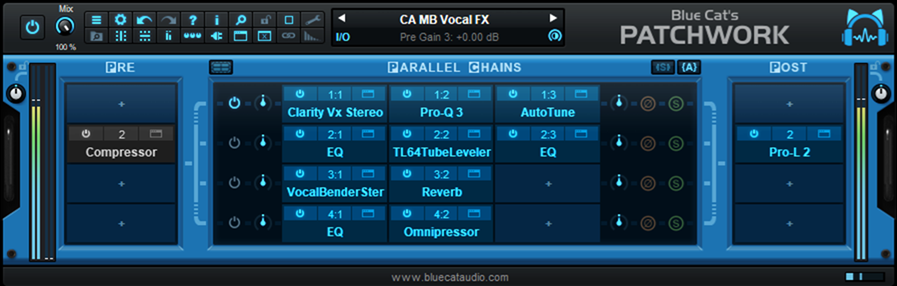
Blue Cat Audio’s Patchwork (fig. 6) and Waves’ free StudioVerse Audio Effects (fig. 7) plug-ins can host other plug-ins, and also serve as wrappers. Wrappers make plug-ins in one format appear to the DAW like they’re in a different format. For example, Pro Tools is normally limited to loading only AAX-format plug-ins. However, inserting Patchwork allows loading VST2, VST3, and (with macOS) AU effects. Inserting StudioVerse Audio Effects can load VST3 as well as Waves effects.
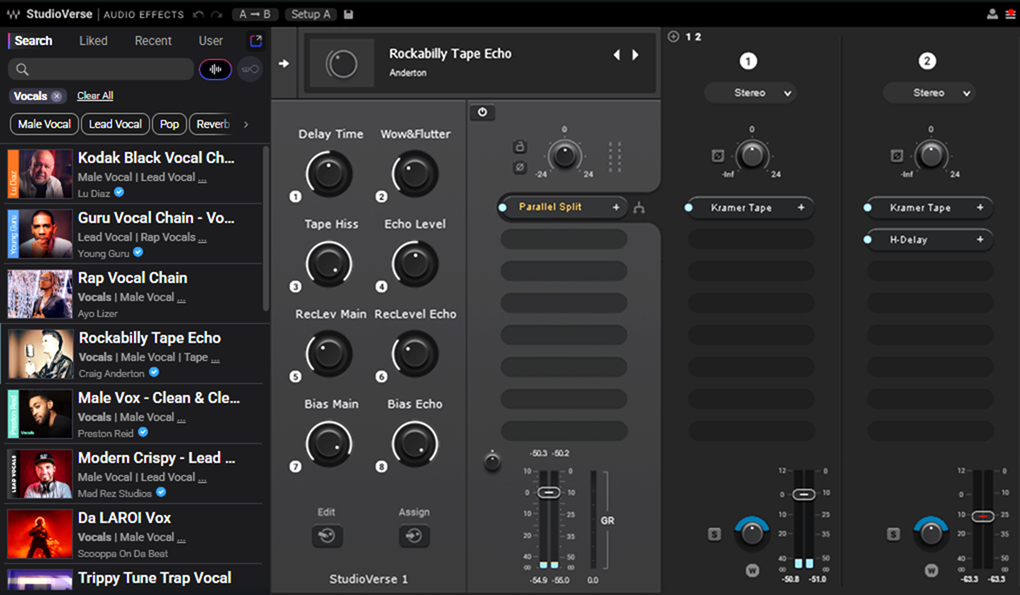
In fig. 7, the left panel shows presets from the StudioVerse library (including one of mine). The panel to its right can have up to eight macro controls. The rest of the plug-in shows the three parallel splits. To download the plug-in and access the searchable StudioVerse library based on Waves plug-ins, create a free user account at waves.com.
Overall, parallel effects routing for DAWs can add tremendous flexibility for signal processing—and now it’s easier than ever to create these kinds of parallel effects routing for DAWs, no matter which DAW you use. Go for it!
Craig Anderton is a music industry legend—from his teenage touring days, to production and mastering projects for artists from classical to hardcore, to his current work in disrupting the publishing industry. Recent e-books include Innovative Techniques for Pro Tools, The Huge Book of Studio One Tips & Tricks, The Big Book of Cubase Tips & Tricks, and How to Record and Mix Great Guitar Tracks. Visit his free educational website at craiganderton.org, and hear Craig’s latest music releases on his YouTube channel.
If you’re looking for a great Pro Audio PC for Parallel Effects Routing for DAWs, check out the entire Rok Box line of Pro Audio PCs!