
Gain Staging: Why It Matters, and How to Do It
Gain staging optimizes levels within a project. This promotes intended plugin behavior, preserves dynamics, and potentially minimizes distortion and noise.
Unlike analog recording, the goal with digital recording is not to have as high a level as possible short of 0 dB. An average level of -18 dBFS, with peaks falling in the range of ‑6 to ‑12 dB, is a common goal for setting levels. However, there’s some latitude. For example, with an extremely percussive sound, the average level might be lower than -18 dBFS. In that case, not exceeding the peak level is more important than maintaining an average level.
Even with the huge dynamic range of modern digital audio, you still need to be concerned about levels. There are two main reasons why:
- While mixing, you want a comfortable range for fader travel. It’s not ideal to have such a hot signal coming into the mixer that you have to turn down the faders or the main bus level to compensate. This squeezes the process of setting levels into a physically small, and difficult to adjust, fader range.
- Many popular plugins emulate classic analog gear and model their inherent non-linearities (e.g., saturation and harmonic distortion) very accurately. However, in the analog world, these non-linearities respond differently at different input levels. There’s usually a “sweet spot” that emulations strive to preserve. (For example, the documentation for Waves’ CLA-2A notes that “the hardware was modeled at reference levels of -18 dBFS = +4 dBu.”) Overly hot inputs can overshoot the sweet spot, or worse, cause unintended distortion—not “nice” analog distortion. Conversely, too low an input level can lead to noise, and not take advantage of the processor’s full dynamic range. Excessively low levels can even increase distortion, because super-low levels don’t take advantage of digital audio’s full available resolution.
Gain Staging Going Into a DAW’s Mixer
VU meter plugins facilitate gain staging because you can insert them at various places in the signal chain. Some programs, like Fender Studio Pro (formerly PreSonus Studio One) and Steinberg Cubase, include VU meter plugins. DAWs without VU meter plugins can use the Waves VU meter, Blue Cat Audio DP Meter Pro, or free alternatives like TBProAudio’s mvMeter2.
VU meters have calibration options so that 0 can represent specific values. You’ll want to calibrate 0 to -18 dBFS (fig. 1). It’s much easier to read levels when the VU meter “transposes” a reading of -18 to 0.
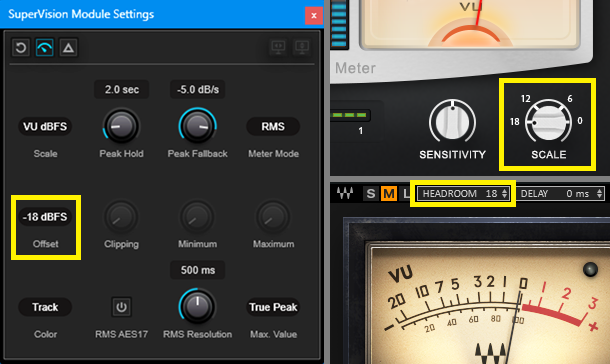
Do gain staging one mixer channel at a time. Start by inserting the VU meter plugin as the first insert in a chain of effects. (There’s one exception: With Universal Audio’s modeling mic, the Sphere plugin needs to be first. insert the VU meter after Sphere.) The VU meter shows the level coming from a track into the DAW’s mixer (fig. 2).

Figure 2: The PreSonus VU Meter plugin is checking the level coming into Fender Studio Pro’s mixer. The plugin has an option to show a meter thumbnail within the mixer channel. Double-clicking on the meter expands it to a separate, larger interface, which includes peak metering and calibration parameters.
The next step is trimming the input level coming into the mixer for a -18 dBFS average level (fig. 3). Cubase has a Gain control in the Pre section. Studio One has Input Controls. For Pro Tools, insert the Trim plugin as the first insert effect, prior to the VU meter. For Ableton Live, insert the Utility plugin prior to the VU meter.

Figure 3: Clockwise from top left: Cubase preamp Gain setting (followed by the SuperVision VU meter), Trim plugin inserted at the top of a Pro Tools channel, Studio One Input Controls prior to the effects Insert section.
To trim the levels, place a short loop around the hottest section of the track that’s feeding the channel with gain staging. Start playback, and trim the incoming level to the mixer so that the VU meter’s average reading is 0 (not -18 dBFS, because previously, the VU meter 0 reading was calibrated for -18 dBFS).
Next, check the mixer channel meters for peak readings, which typically reach between -12 to -6 dB. If the audio peaks exceed -6 dB, trim the input gain further so that the peaks are at or below -6 dB. This may lower the average level somewhat, but that’s okay. You don’t need to be a fanatic about this—just try for -18 average, and if necessary, adjust for excessive peaks. Generally, it’s better to be a little more conservative with your settings than a little more aggressive.
Gain Staging Through Inserted Plugins
When inserting multiple processors (EQ, compressor, saturator) in a mixer’s channel for gain staging, each plugin may amplify or attenuate the signal. This can lead to cumulative distortion or loss of dynamics. So, after setting the signal level entering the mixer, it’s important to maintain consistency as the signal travels through a channel’s insert effects or goes to a bus.
This is why using a VU meter plugin is much more convenient than trying to use a mixer channel’s meter to gauge levels—simply place the VU meter at an effect output to see how it affects the level. As a reality check, you’ll often want a plugin’s output level to be similar in its bypassed or enabled state. So, a plugin’s bypass/enable button is your friend. After gain staging, you’ll have maintained a proper signal level between the mixer channel input and what its fader contributes to the mix.
Regarding buses and sends, be careful about sending an overly hot signal to a bus. Gain staging as described for channels through the bus. Rely on the bus fader to set the proper level going to the main Stereo Out bus.
Gain Staging Though the Main Bus
The final part of gain staging involves the main stereo output bus. This is where your freedom-loving digital audio with tons of potential dynamic range collides with the real world of playback limitations. If you find yourself constantly turning down the master output level, what to do depends on which of the following scenarios describes how you work:
- You insert your mastering processors in the master bus (called top-down mixing, which combines mixing and mastering). Don’t depend on limiting or maximization to control output levels. It’s best to use gain staging through these plugins as you do for individual channels, and insert the VU meter as the last plugin in your master bus’s plugin chain. If there won’t be a separate mastering process, you can run the output peak levels as hot as possible, while respecting a true peak level of -1 to -2 dB. Or if applicable, export the mix with specific LUFS and True Peak characteristics.
- The stereo mix will be mastered as a separate process. This is my preference. In this case, the main bus won’t host signal processing plugins. If the channel levels contribute enough output that you need to turn down the master output level, either lower the master level as needed, or temporarily group all your channel faders and lower their levels a bit until the output level hits the sweet spot of -18 dBFS average.
Also note that some dynamics processors have an Auto mode that sets attack and release times. For example, the ARC (Auto Release Control) function in some Waves dynamics processors adjusts release times dynamically, based on RMS levels and peak transients. So, the input level affects tonal clarity and loudness behavior. As these types of plugins are intended to be inserted last in a mastering effects chain, they expect the type of “industry standard” average and peak levels described earlier.
And now, your gain staging work is done. Your reward is a better-sounding mix—so it’s worth the effort.
Craig Anderton is a music industry legend—from his teenage touring days, to production and mastering projects for artists from classical to hardcore, to his current work in disrupting the publishing industry. Recent e-books include Innovative Techniques for Pro Tools, The Huge Book of Studio One Tips & Tricks, The Big Book of Cubase Tips & Tricks, and How to Record and Mix Great Guitar Tracks. Visit his free educational website at craiganderton.org, and hear Craig’s latest music releases.
If you’re looking for a great pro audio PC for music production, check out the entire Rok Box line of Pro Audio PCs!