
Table of Contents
How to Bounce a Mix in Pro Tools
This blog is part of our new series of tutorials based on Avid’s flagship Digital Audio Workstation, Pro Tools.
Want to learn how to use Avid Pro Tools in real time, with a professional digital audio trainer? It’s faster than blogs, videos, or tutorials. Call OBEDIA for one on one training for Avid Pro Tools and all digital audio hardware and software. Mention this blog to get 15 bonus minutes with your signup! Call 615-933-6775 and dial 1, or visit our website to get started.
Need a Pro Audio laptop or Desktop PC to run Avid Pro Tools software and all of its features at its best?
Check out our pro audio PCs at PCAudioLabs.
Getting started with How to Bounce a Mix in Pro Tools
Pro Tools is a software that lets you produce, record, edit and mix audio & MIDI performances within a “session”.
After we have finished mixing a song, clients might ask the engineer or producer to send “bounces” of these mixes. A “bounce” is basically a stereo file of the mix that clients can listen on their stereo systems at home, in the car or in their phones. Typically, bounces are created in CD Audio quality (4.1 KHz @ 16 bits) or simply MP3’s.
Today, we are going to explore the required procedures that any Pro Tools user will need to follow in order to properly Bounce a Mix in Pro Tools.
-
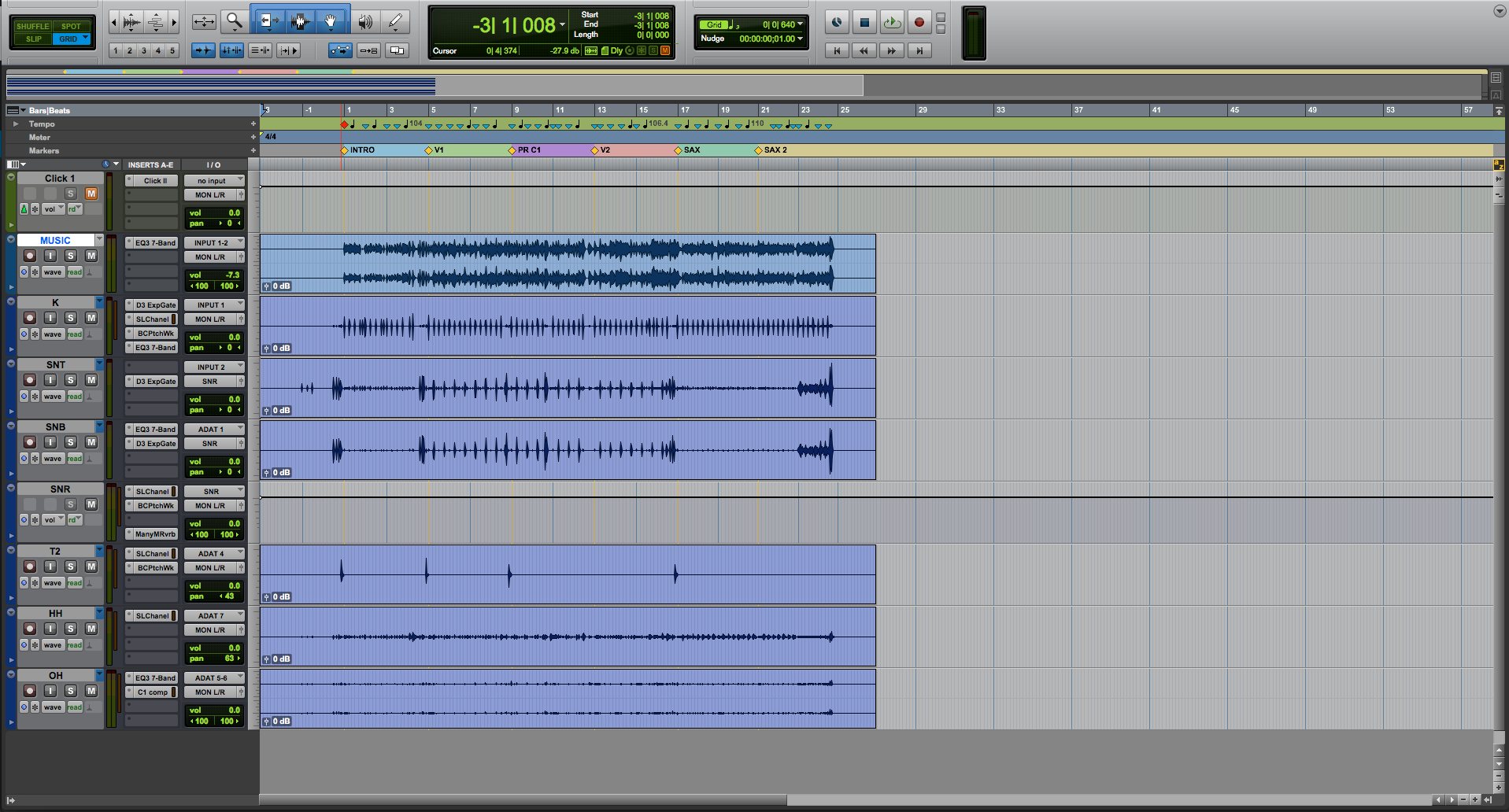
Open an existing Pro Tools session that contains a song already mixed:
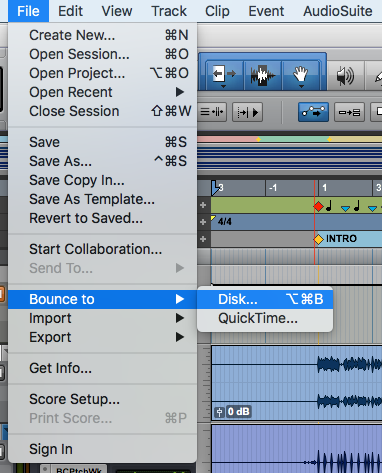
2. From the top menu bar click on: File -> Bounce To -> Disk
The Bounce window will open as:
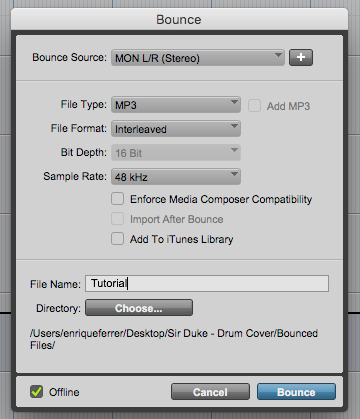
The Bounce window has several parameters we must study. These are:
- Bounce Source: This drop-down list lets you select the source for the bounce. By default the main analog output pair is the bounce source. This means that everything going out of the interface thru the main analog output pair will be saved to the stereo bounce file.
- File Type: This drop-down list lets the user select the file type of your bounce. Options include MP3, WAV, AIFF, MXF.
- File Format: This drop-down list lets you select between interleaved stereo (one stereo bounce file), multiple mono (two mono bounce files, one for each channel) and Mono (a single mono file that contains the whole mixed summed to a single channel.
- Bit Depth: This drop-down list let you select the bit depth of the bounce. Options rage from 16 bits to 32 bit-float.
- Sample Rate: This drop-down list let you select the sample resolution of your bounce. Options range from 8 KHz to 192 KHz.
- File Name: This field lets you type the name of your bounce file.
- Directory: This area lets you select the location in your computer where the bounce file will be stored when finished.
- Offline: When this is checked, the bounce will not happen in real time. The actual running time of the bounce procedure will depend on your computer specifications.
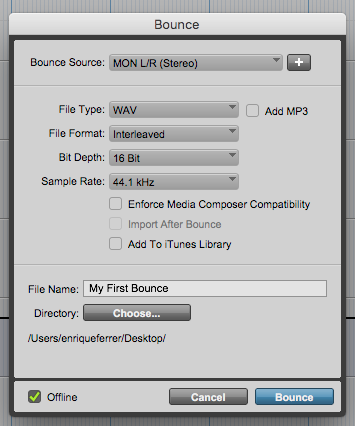
For the purpose of this tutorial we will set this window as:
- Bounce Source: MON L/R.
- File Type: WAV.
- File Format: Interleaved.
- Bit Depth: 16 bits.
- Sample Rate: 44.1 KHz.
- File Name: “My First Bounce”.
- Directory: Desktop.
- Offline: ON.
3. Apply the previous configurations and the Bounce window will look as:
4. Press “Bounce” and the Bouncing procedure will start:
The following window will appear to indicate the status of the bounce procedure.
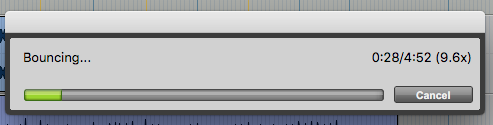
Once finished, the program will take us back to the Edit Window:

You can now navigate to the desktop, and find your stereo bounce of your song and playback using your standard music reproduction software.
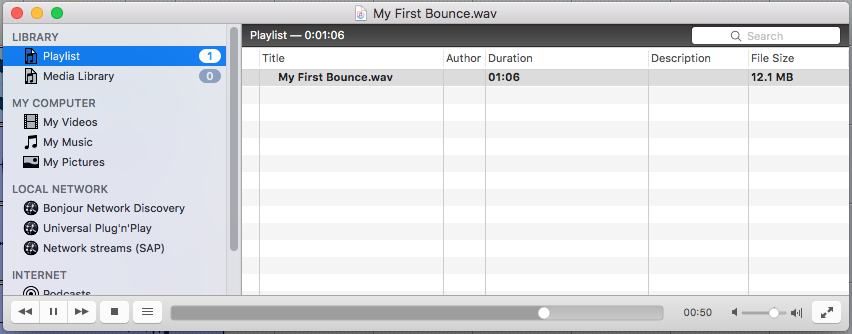
At this point we have successfully demonstrated How to Bounce a Mix in Pro Tools. You can now finish your song!
Using Avid Pro Tools software to produce music would be ideal with one of our professionally designed PCAudioLabs Systems due our high-performance specifications in order to work with any of the Digital Audio Workstations supported. If you would like to order one of our PCAudioLabs computers, please call us at 615-933-6775 or click this link for our website.