
Table of Contents
How to Create and Configure a Click Track in Pro Tools
In this blog, we’ll talk about h ow to create and configure a click track in Pro Tools.
Want to learn how to use Avid Pro Tools in real time, with a professional digital audio trainer? It’s faster than blogs, videos, or tutorials. Call OBEDIA for one on one training for Avid Pro Tools and all digital audio hardware and software. Get your first month of training for only $9.99! Visit our website to get started.
Pro Tools runs best on a properly-built Pro Audio PC. If you’re looking to get the most performance out of Pro Tools, look no further than a PCAudioLabs Pro Audio PC. We can help you configure and build the best PC for Pro Tools and Digital Audio Music Production.
To find out more and view the entire line of Rok Box Pro Audio PCs for Pro Tools, click here!
Getting started with How to Create and Configure a Click Track in Pro Tools
Pro Tools is a software that lets you produce, record, edit and mix audio performances within a “session”.
On the vast majority of recording sessions, especially when working with “commercial” music genres, there is a high probability that you will need to record following a steady tempo. This can be done by using a Metronome or “Click” Track.
On this tutorial, we will learn How to Create and Configure a Click Track in Pro Tools:
-
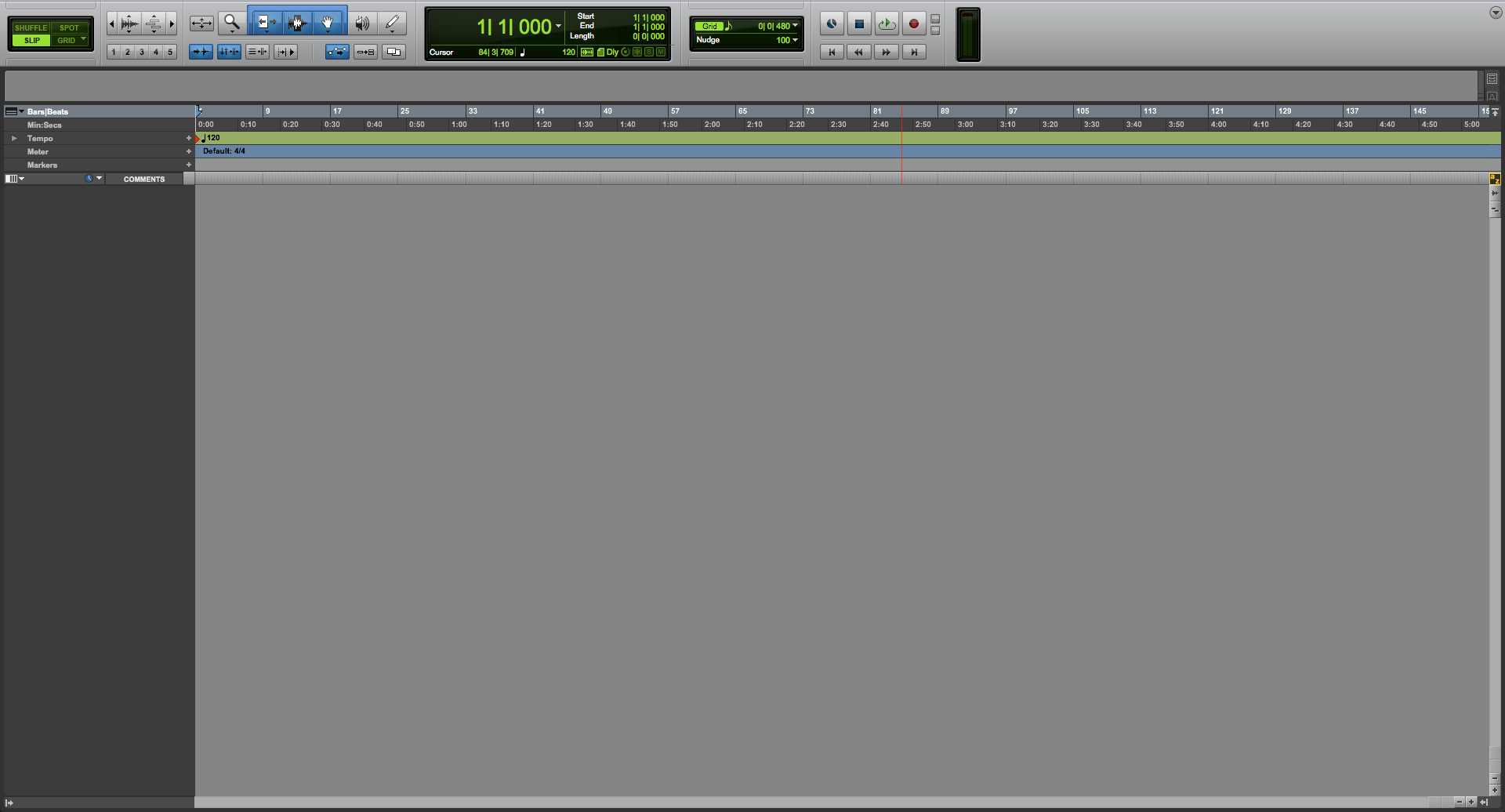
Create or open an existing Pro Tools session:
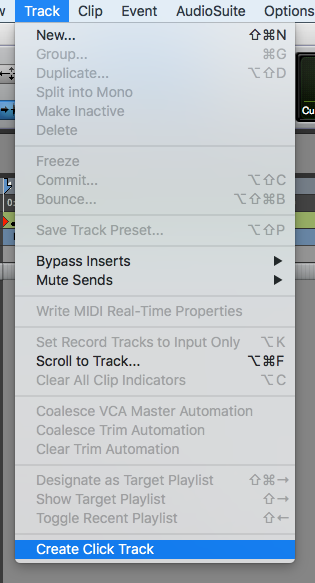
2. From the top menu bar, click on: Track -> Create Click Track:
The Click Track will be created as:
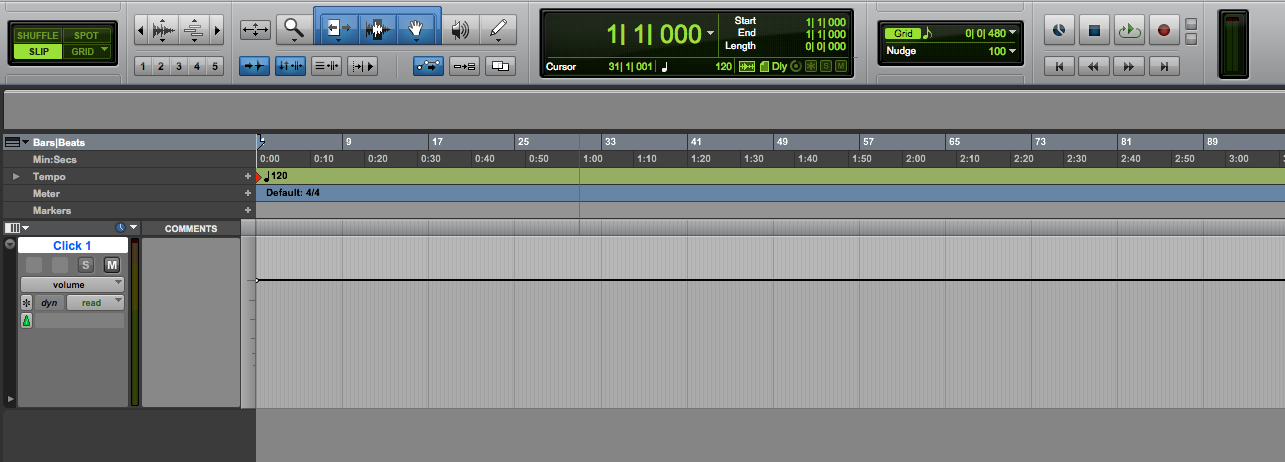
Now we are going to configure how fast this click or metronome will play be setting up the bpm count (beats per minute).
3. Locate the small red triangle that designates the start of the click from the timeline:
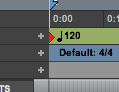
4. Double click on this red triangle to open the “Tempo Change” window:
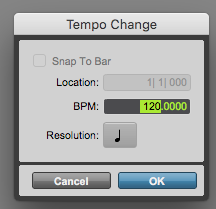
From this window you can type the desired bpm count on the “BPM” field. Also, you can set the resolution from different note values.
For the purpose of this tutorial we will set this to 90 pm at a quarter note resolution:
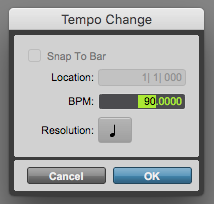
5. Press “OK” to make the changes.
The window will close and it will take us back to the Edit window:
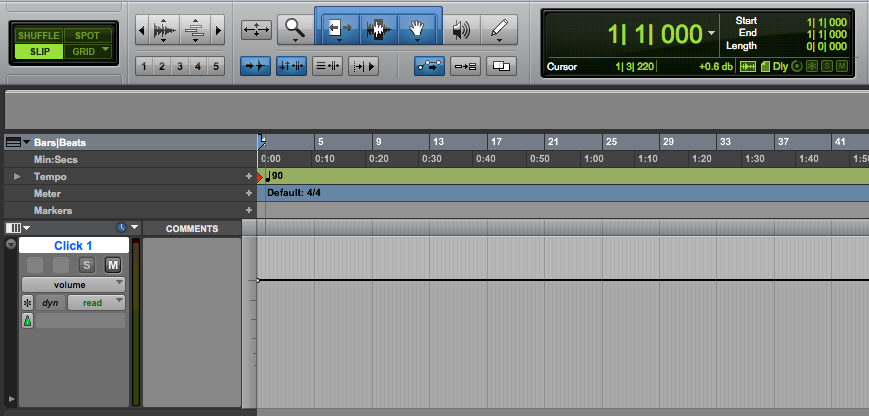
Now we have to make sure that the Click is in fact enabled.
6. From the top menu bar look for: Options -> Click

As you can see from the picture, the “Click” option appears to be checked. This means that it is enabled. If by some reason it appears to be un-checked, it will not playback the sound of the click. You can toggle this ON/OFF by simply pressing on this “Click” option. Alternatively you can press the number 7 on your numeric key pad.
Now we are going to configure the click track in Pro Tools’ sound.
7. Go to the Mix window by clicking on Window -> Mix:

The Mix window will open as:
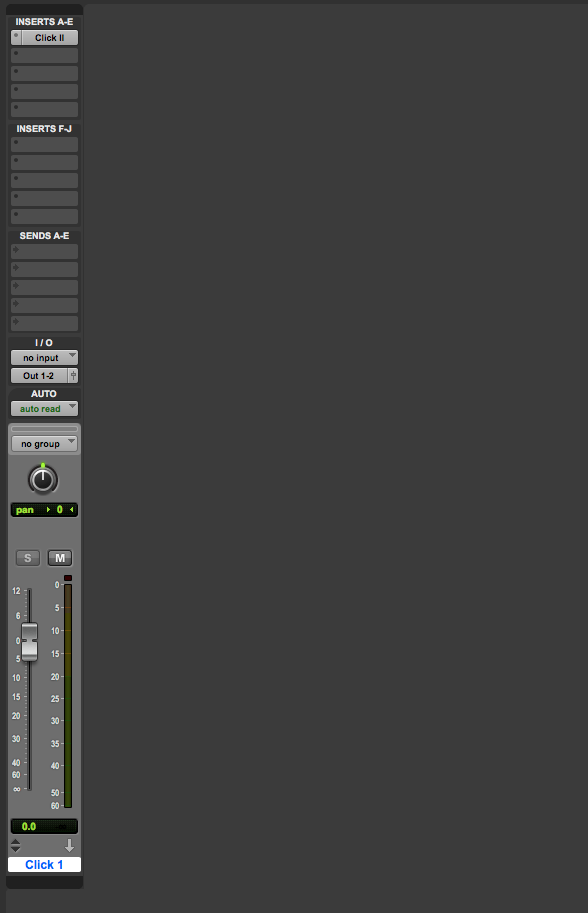
8. Look for the “Click II” insert on the Click channel strip:

9. Click on the insert to open it:
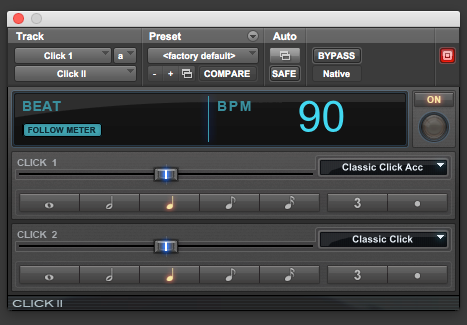
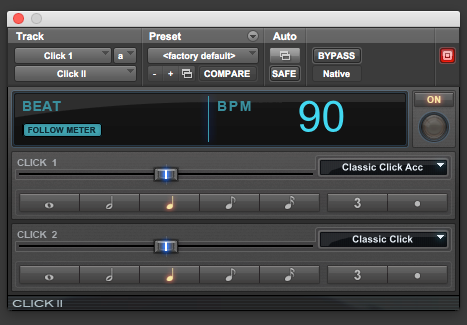
From this Click II plugin, we can set the volume of the first beat of each measure (labeled as “Click 1”) and from the remaining beats of the measure (labeled as “Click 2”). This can be done using the associated sliders:

You can also set the resolution of each of these clicks as a note value ranging from whole note to 16th note:

Another important feature is the ability to set the sound of the beats from the drop-down lists:

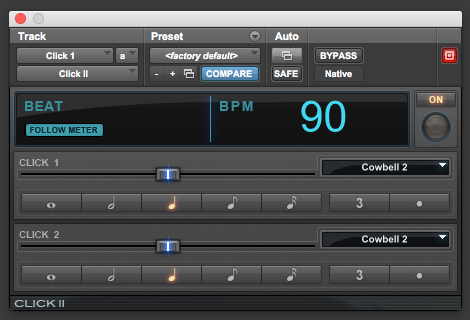
For the purpose of this tutorial, we will set the click to be “Cowbell 2” with both clicks as quarter notes and same volume. The Click window will look as:
At this point, we have successfully explained How to Create and Configure a Click Track in Pro Tools. You can now start recording!
We hope you found this tutorial on how to create and configure a click track in Pro Tools helpful.
If you need help with creating a click track in Pro Tools, or general help with getting to know Pro Tools, make sure to sign up with OBEDIA, the leader in Pro Tools one-on-one training! Work with a real pro audio technician in real time on your computer, and get your questions answered quickly.
To get your first month of OBEDIA for only $9.99, click here for a special offer.
Using Avid Pro Tools software to produce music would be ideal with one of our professionally designed PCAudioLabs Pro Audio PCs, due our high-performance specifications in order to work with any of the Digital Audio Workstations supported. If you would like to order one of our PCAudioLabs computers, please call us at 615-933-6775 or click this link for our website.