
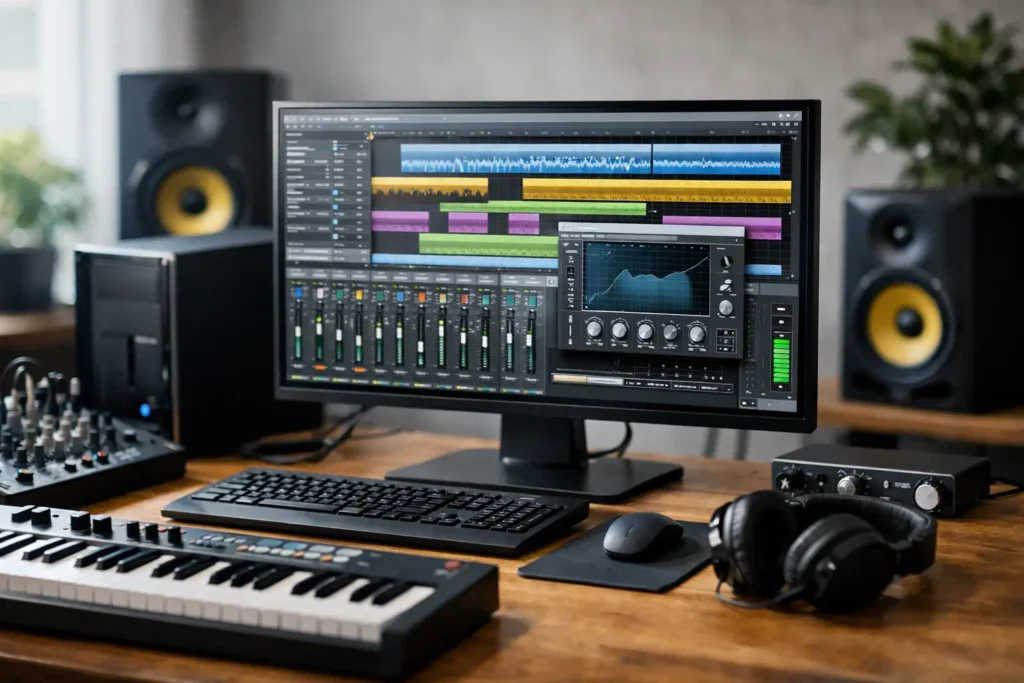
A DAW session rarely fails because one setting looked wrong on paper. It fails when small issues stack up – background tasks, power-saving behavior, driver conflicts, wireless polling, and storage bottlenecks all landing at the worst possible moment. If you are figuring out how to optimize Windows for DAW performance, the goal is not to make Windows look faster. The goal is to make your system predictable under load.
That distinction matters. A machine that feels quick in everyday use can still struggle at low buffer sizes, throw random audio dropouts, or spike CPU during tracking. Good DAW optimization is really about removing interruptions so your audio interface, drivers, plugins, and storage can do consistent work in real time.
How to optimize Windows for DAW stability
The first place to look is power behavior. Windows is designed to balance performance, thermals, and battery life, but audio work benefits from fewer moving targets. Set your system to a high-performance power plan and make sure the processor is not aggressively downclocking during sessions. On desktops, this usually means using a High Performance or Ultimate Performance plan if available. On laptops, the trade-off is battery life and heat, so you may want one profile for mobile editing and another for tracking when plugged in.
USB power management is another common source of trouble. If Windows is allowed to suspend USB devices to save power, your audio interface, MIDI controller, or external drive may not behave consistently. In Device Manager, review USB root hubs and related power settings so critical studio peripherals are not being put to sleep. This is especially relevant with bus-powered interfaces.
Visual effects are usually not the main problem, but background efficiency still matters. You do not need to strip Windows down to a bare shell, and in many cases extreme tweaks create more trouble than they solve. What you do want is a system that is not spending resources on unnecessary startup apps, sync clients, update prompts, or vendor utilities while you are recording. A clean startup environment is more useful than cosmetic trimming.
Start with drivers, not tweaks
A surprising number of DAW issues get blamed on Windows when the real cause is driver quality. Your audio interface should be running its proper manufacturer driver, not a generic fallback if a dedicated ASIO driver is available. Buffer settings, low-latency behavior, and clock stability all depend on this layer.
Chipset, storage, graphics, and network drivers also affect system behavior. That does not mean you should update every driver the moment a new version appears. In production environments, stability beats novelty. If a system is working well, updates should be deliberate, not automatic. The best practice is to test changes before trusting them in session-critical work.
This is where purpose-built audio systems save time. A properly configured machine with validated components and tested driver combinations removes a lot of the guesswork from the start. PCAudioLabs has built its reputation around that exact problem: making Windows systems behave like dependable production tools rather than hobbyist experiments.
Storage layout matters more than most people think
If your OS, sample libraries, sessions, and video cache all compete on one busy drive, performance gets inconsistent fast. Modern NVMe storage is extremely fast, but workflow still matters. For many creators, the best setup is a dedicated system drive for Windows and applications, then separate fast storage for project files and large sample libraries.
For audio-only sessions with modest track counts, one fast drive can be enough. For larger orchestral templates, high-track-count sessions, or hybrid audio and video work, separation helps. Streaming samples, recording multitrack audio, and writing temp data at the same time can expose weak points that do not show up in lighter projects.
Drive health matters too. Keep sufficient free space on production drives, especially your system drive. Once a drive gets too full, write behavior and temporary file handling can become less predictable. Mechanical drives still have a place for archive storage, but for active DAW work, SSD or NVMe storage is the safer choice.
Network, wireless, and background services
One of the most practical answers to how to optimize Windows for DAW work is also one of the least glamorous: reduce background activity during sessions. Wi-Fi and Bluetooth are not always a problem, but they can be. On some systems, wireless activity contributes to DPC latency spikes that show up as clicks, pops, or buffer instability.
If you are tracking at low latency, try disabling Wi-Fi and Bluetooth temporarily and compare results. The same logic applies to cloud sync tools, browser tabs, messaging apps, and automatic backup tasks. You do not have to turn a DAW computer into an offline museum piece, but you should know what is running when real-time audio matters.
Windows updates also need a strategy. You want security and compatibility, but not in the middle of a client session. Schedule updates outside working hours, and avoid major changes right before important deadlines. A stable system is the result of controlled maintenance, not constant change.
Audio settings that actually affect sessions
Inside your DAW and interface control panel, buffer size is where optimization becomes practical. Lower buffer settings help during tracking and software monitoring, but they also reduce the amount of time the CPU has to process audio. Higher settings increase stability for mixing with heavy plugin chains. There is no single best number. It depends on whether you are recording vocals at low latency, editing dialogue, mixing dense sessions, or mastering.
Sample rate deserves the same kind of realism. Higher sample rates can reduce monitoring latency in some workflows, but they also increase CPU and storage demands. If the project does not benefit from 96 kHz, forcing it can waste resources. Matching the session format to the actual production goal is a better optimization strategy than assuming bigger numbers mean better results.
Plugin management matters as much as system settings. One unstable plugin can make an otherwise solid machine look unreliable. Keep your plugin library organized, remove outdated versions you no longer use, and be cautious with older freeware or poorly maintained instruments and effects. If a session is unstable, test with plugins bypassed before blaming Windows.
BIOS and hardware-level considerations
Serious DAW optimization sometimes starts before Windows loads. BIOS settings that affect CPU behavior, onboard devices, and memory performance can influence real-time audio. The right choices vary by motherboard and CPU platform, which is why random internet checklists often create confusion.
For example, some users benefit from disabling hardware they never use, such as onboard audio, unused network controllers, or wireless radios. In other cases, changing CPU power features can help, but there is no universal rule. Aggressive BIOS tweaking can also reduce stability if you do not fully understand the platform. Overclocking is a clear example. It may look attractive for benchmark numbers, but in professional production, reliability under sustained load matters more than chasing marginal gains.
Thermals are part of this conversation too. A machine that runs hot may throttle under long sessions, especially with dense virtual instruments or video exports. Quiet cooling, good airflow, and sensible component choices are not luxury details. They directly affect whether performance stays consistent over time.
What to check when performance still feels off
If your DAW system is still behaving poorly after basic optimization, stop guessing and isolate variables. Test the interface at different buffer sizes. Try a clean project. Disable Wi-Fi. Disconnect nonessential USB devices. Check whether the issue appears only with one plugin or one sample library. Look at Task Manager, but do not rely on CPU percentage alone. Real-time audio failures often come from interrupt behavior and driver timing, not just total CPU load.
Latency analysis tools can help identify whether a network driver, graphics driver, or another device is causing spikes. They are useful for diagnostics, but they do not replace workflow awareness. A production computer should be configured around what you actually do – tracking bands, composing with large templates, editing podcasts, scoring to picture, or mixing for long hours without interruption.
That is why the best optimization advice is rarely the most dramatic. Keep Windows clean. Use proven drivers. Separate workloads across fast storage when needed. Control updates. Disable what you do not need during sessions. Match buffer size to the job. Avoid unnecessary experiments on a system that already works.
A well-optimized DAW computer should disappear into the background. When that happens, you stop thinking about Windows and get back to the only metric that matters: whether the session moves forward without friction.