
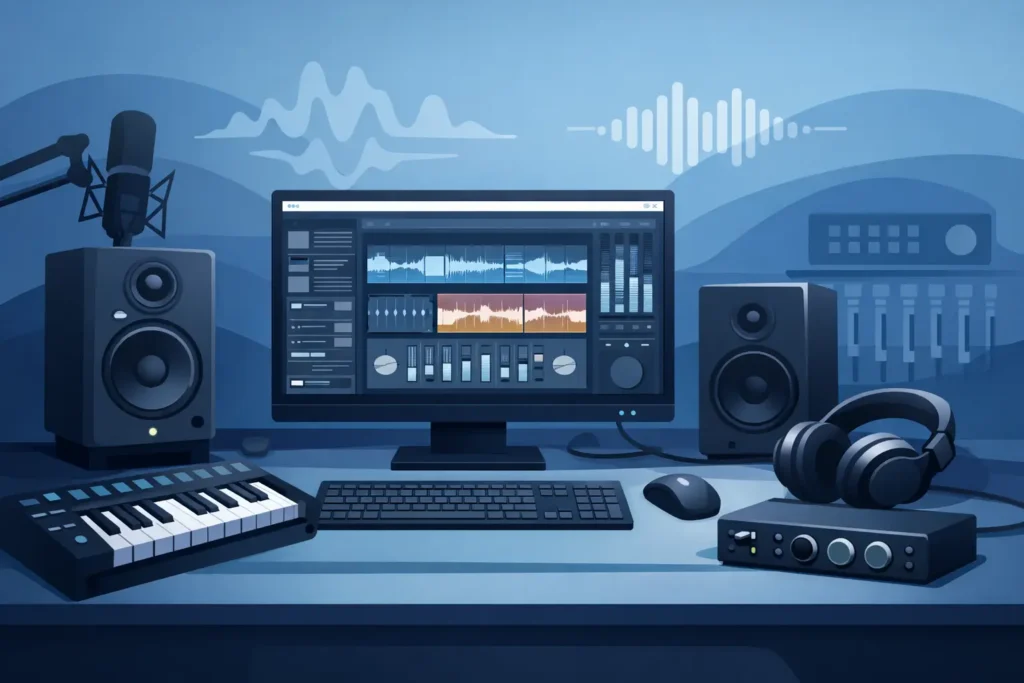
A recording computer is easy to overlook until a vocalist is ready to take a final pass and the DAW stops responding. For a Windows PC for recording studio work, the real standard is not a benchmark score or a flashy gaming specification. It is whether the system can record at a low buffer, run a serious plug-in chain, stay quiet around microphones, and remain stable through a full day of sessions.
That changes how a studio computer should be specified. A good production workstation is a complete system: processor, memory, storage, cooling, graphics, motherboard, drivers, operating system configuration, and the way they behave with your interface and DAW. The right choices depend on your work, but the priorities are consistent.
Start with the recording workflow
A songwriter tracking a few vocal and guitar channels has different requirements than an engineer recording a full band, a composer running large orchestral templates, or a mixer opening dense sessions at 96 kHz. Buying based on one headline spec can leave a system mismatched to the work it needs to do.
For tracking, low-latency performance is the center of the decision. Musicians need to hear themselves through the DAW without a distracting delay, often while monitoring through virtual instruments, amp simulations, or a small number of effects. That requires a capable processor, a stable audio interface driver, and a platform that behaves predictably at low buffer settings.
Mixing and mastering place a different kind of pressure on the machine. The session may have hundreds of plug-in instances, high-resolution audio, oversampling, and stems moving between multiple drives. Here, sustained CPU capacity, adequate RAM, and fast storage become more prominent. The system does not always need to operate at the lowest tracking buffer, but it must retain enough headroom that a late-stage mix change does not turn into a CPU warning.
Composers and post-production professionals often need both. Large sample libraries consume memory and storage bandwidth, while picture playback, virtual instruments, and automation demand responsive performance. A workstation should be configured around the heaviest normal session, not the smallest project it can open.
Processor choice: performance that holds up in sessions
Modern processors offer abundant power, but audio production responds best to the right balance of fast individual cores and enough total cores for parallel workloads. A DAW cannot always divide every part of a session evenly across all available cores. One demanding instrument or effects chain may lean heavily on a single core even when the overall CPU meter appears comfortable.
That is why strong single-core performance matters for low-latency recording and instrument-heavy sessions. More cores still add meaningful value for mixing, rendering, offline processing, video work, and sessions with many independent tracks. The practical goal is not simply to buy the highest core count. It is to select a processor whose speed and core layout fit the way you produce.
Thermal design belongs in the same conversation. A processor that performs well for a short burst but runs hot or becomes loud during extended use is not ideal for a control room. Quiet, effective cooling helps the system maintain its performance when a session runs long, without adding fan noise to a live room or vocal booth.
Memory and storage prevent avoidable interruptions
RAM determines how comfortably a workstation can keep sample instruments, audio applications, background utilities, and active projects in memory. For straightforward recording and mixing, 32 GB is often a sensible professional baseline. Larger orchestral templates, sound design sessions, video projects, and demanding multitasking can justify 64 GB or more.
More memory is not automatically better if your projects never approach the limit. But too little memory creates a bottleneck that is difficult to work around in the middle of a job. When the system begins relying heavily on virtual memory, instruments load more slowly and the entire workflow can feel less responsive.
Storage should be planned by function. A fast solid-state drive for Windows, the DAW, plug-ins, and current sessions keeps application launches and project loads moving quickly. A separate fast drive for sample libraries can help composers and producers who stream large instrument collections. Additional internal or external storage is useful for archives, backups, and completed projects.
Capacity matters as much as speed. Audio sessions grow through alternate takes, exports, track freezes, versions, and backups. Video and high-resolution content grow faster still. Leaving meaningful free space on working drives supports better performance and gives the studio room to finish a project without emergency file management.
Quiet operation is part of the studio design
A computer can be technically fast and still be wrong for a recording room. Fan noise, pump noise, drive vibration, and abrupt changes in fan speed are all distractions when microphones are open. In compact home studios, they can become audible in recordings.
Quiet operation requires more than choosing a quiet case. It comes from selecting efficient components, using appropriate cooling, tuning airflow, and avoiding hardware that produces unnecessary heat. The objective is not silence at any cost. A workstation still needs enough cooling to remain reliable under a demanding mix or render. The best result is controlled, low-level noise without sacrificing sustained performance.
Placement also helps. If the studio layout allows it, a tower can sit farther from the recording position, while long display, USB, and interface connections support an efficient control-room setup. For mobile rigs, compact systems and laptops create different trade-offs: portability improves, but thermal headroom and expansion options may be more limited.
Compatibility is what turns specifications into a working system
An audio workstation lives alongside interfaces, control surfaces, MIDI devices, external drives, displays, synchronization hardware, plug-ins, and often video peripherals. A fast computer that conflicts with one critical device is not a production solution.
This is where generic consumer PC buying advice falls short. Audio professionals need attention to USB and Thunderbolt connectivity, qualified chipset behavior, driver stability, expansion needs, and the specific requirements of the DAW and interface in use. A rackmount system may need PCIe expansion for specialized cards. A composer may prioritize multiple high-speed storage connections. A video editor may need more graphics capability and display support than a mix engineer.
Graphics should be chosen for the workload rather than treated as a default upgrade. Most audio-only systems do not need a high-end graphics card, and an oversized GPU can add cost, heat, and fan noise. Video editing, color work, motion graphics, and multi-display production may benefit substantially from a dedicated graphics solution. The appropriate configuration depends on the applications and media formats you use every day.
Why optimization matters for low-latency recording
Windows is a capable professional audio platform, but audio performance can be affected by driver behavior, power settings, background software, and component interactions. Small configuration choices can influence whether a system remains dependable at the buffer size that makes tracking comfortable.
A production-ready workstation should be tested with the intended creative workflow in mind. That means confirming stable operation under load, applying sensible operating system settings, avoiding unnecessary software, and verifying that the installed hardware works together as expected. It also means recognizing that a system should not be altered casually during a project. An untested driver update or utility can create a problem at exactly the wrong time.
This preparation is valuable because troubleshooting has a real cost. Lost time during setup, delayed sessions, and uncertainty around a client-facing deadline can outweigh the small savings of assembling a machine from parts without audio-specific validation.
Configure the Windows PC for recording studio growth
A workstation should serve the work you do now while leaving room for the work you expect to take on. Expansion may mean additional internal drives, more memory, a higher channel-count interface, more displays, or specialized PCIe hardware. A desktop tower generally offers the most flexibility. Rackmount systems fit permanent installations and machine rooms, while laptops favor producers and engineers who move between studios, stages, and locations.
The most useful question is not, “What is the best computer?” It is, “What must this computer do reliably for the next several years?” Be specific about DAW version, interface model, sample libraries, plug-in count, video requirements, storage needs, and preferred form factor. Those details guide a better configuration than generalized consumer recommendations ever will.
PCAudioLabs builds Rok Box systems around that production reality, with component choices and testing aimed at creative workflows rather than broad consumer use. For studios that depend on a computer every day, that specialized approach can replace guesswork with a machine designed to earn its place in the room.
The right workstation should disappear once the session starts. When the artist is ready, the system should record. When the mix gets dense, it should keep working. That is the standard worth buying for.