
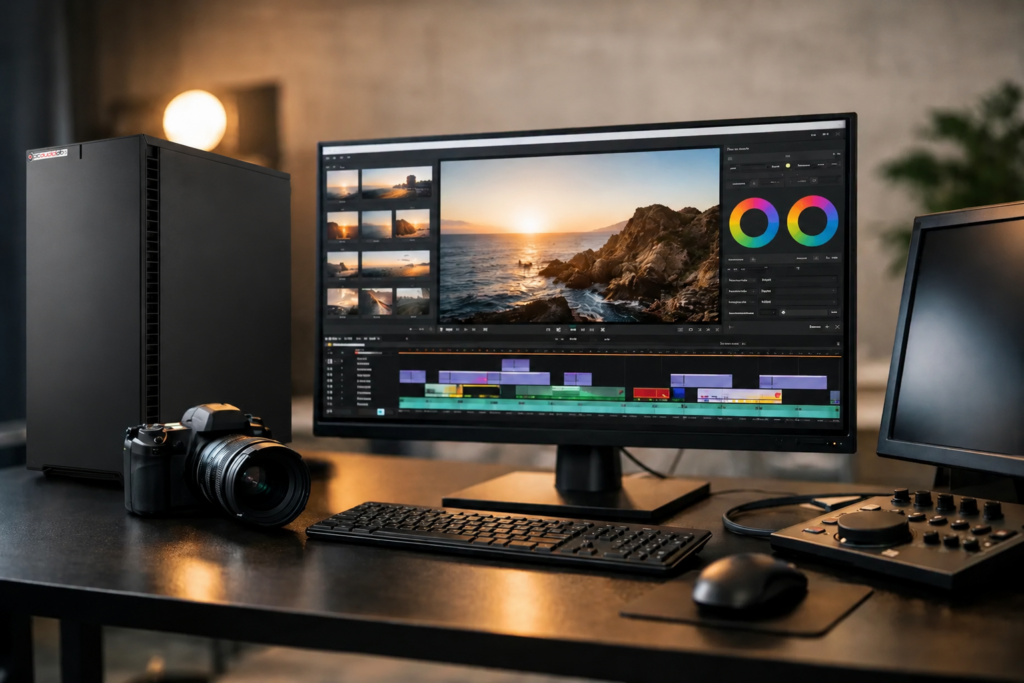
A choppy 4K timeline usually is not a software problem. More often, it is a hardware mismatch – the wrong CPU for your codec, too little RAM for your project size, slow storage for your media, or a GPU that looks great on paper but does not help the work you actually do. If you are looking for the best pc for video editing, the right answer starts with your workflow, not a spec sheet.
Video editors do not buy computers for benchmarks alone. They buy them for smooth playback, shorter exports, fewer crashes, and the confidence to open a deadline-driven project without wondering what will break next. That is why the best system is rarely the one with the loudest marketing. It is the one built around the software, footage formats, and turnaround demands you work with every day.
What the best pc for video editing really needs
A video editing PC has to do several jobs well at once. It needs enough CPU performance to decode footage, generate proxies, handle effects, and render exports. It needs a capable GPU for timeline acceleration, color work, and certain effects pipelines. It needs enough RAM to keep large projects responsive. And it needs storage that can feed high-bitrate media without becoming the bottleneck.
The balance matters more than any one part. An expensive graphics card will not fix a system that is short on RAM. A top-tier CPU will not feel fast if your footage is sitting on a slow drive. Editors often run into this after buying a mass-market gaming PC. Gaming systems can post impressive numbers, but they are not always configured for long render sessions, quiet operation, dependable thermals, or compatibility with professional media workflows.
That difference becomes obvious when you move from occasional editing to paid production. A computer that works fine for a short social clip may struggle with multicam interviews, layered motion graphics, RAW media, or heavy noise reduction.
Start with your editing software and footage
The best buying decision begins with two questions: what software do you use, and what kind of footage do you edit most often?
If you work in Adobe Premiere Pro, the system needs strong all-around performance. Premiere can use both CPU and GPU effectively, and it benefits from fast storage and healthy RAM capacity. If your workflow includes After Effects, RAM becomes even more important because compositions and previews can consume memory quickly.
If you use DaVinci Resolve, GPU performance carries more weight. Resolve leans heavily on the graphics card for playback, color grading, effects, and finishing tasks. But even there, CPU speed, memory, and storage still matter. A powerful GPU in an unbalanced system is still a compromise.
Footage format changes the equation too. Long-GOP codecs such as H.264 and H.265 are common, but they can be demanding to decode smoothly, especially at 4K and above. Intra-frame codecs like ProRes are easier to edit but need more storage bandwidth and capacity. RAW workflows can push every part of the machine depending on resolution, debayer quality, and grading complexity.
That is why there is no universal answer to the best pc for video editing. There is a best fit for HD social content, a different fit for 4K commercial work, and another for 6K or 8K finishing.
CPU, GPU, RAM, and storage: where performance actually comes from
CPU: still the foundation
For many editors, the CPU remains the anchor of the system. It affects decoding, encoding, background processing, proxy generation, and general responsiveness. A modern high-performance multi-core processor is usually the right direction, but core count alone is not the whole story. Clock speed, platform stability, and how your software uses those cores matter just as much.
For straightforward 1080p and light 4K editing, a strong mid-to-upper range CPU can be more than enough. For heavier codecs, multicam sequences, or demanding finishing work, stepping up to a more powerful processor makes sense. The key is buying enough CPU for your actual timeline load, not just for bragging rights.
GPU: critical, but not always the first upgrade
GPU performance matters most when your software can take advantage of it. Premiere Pro, Resolve, and many modern creative tools use the GPU for playback acceleration, effects, scaling, color processing, and exports. If you do substantial grading, compositing, AI-assisted tools, or high-resolution work, a more capable GPU can save serious time.
That said, there is a point of diminishing returns. A top-end card may not transform an editor who mostly cuts interviews with light color correction. In those cases, more RAM or faster storage may improve the experience more than moving up another GPU tier.
RAM: the part editors underestimate
RAM is often where systems start to feel cramped. For basic editing, 32GB can still be workable. For professional 4K workflows, 64GB is a more comfortable baseline. If your projects are complex, your footage is high resolution, or you work between Premiere Pro, After Effects, Photoshop, and browser-based review tools at the same time, more memory can make a real difference.
Running short on RAM does not always cause a dramatic crash. More often, it causes subtle slowdowns, stuttering, longer cache times, and a machine that feels inconsistent under pressure.
Storage: fast enough, and organized correctly
Storage should be planned as a workflow, not a single drive. Your operating system and applications should live on a fast SSD. Active projects and media should ideally run from separate high-speed storage, especially when you are handling high-bitrate footage, multicam edits, or lots of cache data.
Editors also need to think about capacity, not just speed. 4K and 6K projects consume space quickly, and so do renders, proxies, cache files, and backups. The best PC setup is one that keeps current work fast while making archive and backup management practical.
Best PC for video editing by workflow
For HD and light 4K editing
If your work is mostly YouTube videos, podcasts with camera footage, training content, or social edits, you may not need an extreme machine. A solid modern CPU, a capable midrange GPU, 32GB to 64GB of RAM, and fast SSD storage can handle this work well. What matters most here is consistency. Smooth playback, stable exports, and quiet operation tend to be more valuable than oversized specs.
For professional 4K editing and regular client work
This is where many working editors live. You may be cutting interviews, branded content, corporate spots, events, or documentary projects with color work and some motion graphics. In this range, system balance becomes critical. You want a strong multi-core CPU, a serious GPU, 64GB of RAM or more, and storage designed for active media workloads.
For many professionals, this is the sweet spot – enough power for demanding projects without stepping into unnecessary cost or thermal complexity.
For 6K, 8K, RAW, VFX-heavy, or finishing work
At the top end, the best pc for video editing becomes less about raw parts and more about engineering. Heavy GPU acceleration, large memory capacity, substantial cooling, stable power delivery, and fast high-capacity storage all need to work together. These systems are often running long sessions, large renders, and complex applications where stability matters as much as speed.
This is also the point where generic retail configurations start to show their limits. A machine built for content creation should be selected and tested for sustained production loads, not just quick benchmark runs.
Why reliability matters as much as performance
Most professionals have learned this the expensive way. The system that is technically fast but crashes during exports, runs loud under load, or develops compatibility issues with interfaces, monitors, or software updates is not the best system. It is a liability.
A true editing workstation should be quiet enough for creative environments, cool enough for long sessions, and configured with components that behave well together. That includes motherboard quality, power supply headroom, cooling design, memory compatibility, and thoughtful OS optimization. These details do not look flashy in an ad, but they matter when your project is due at 9 a.m. and the render needs to finish overnight.
This is where a specialized builder can offer an advantage. Companies like PCAudioLabs approach systems as production tools, with component choices and testing centered on real media workloads instead of broad consumer appeal.
The smartest way to choose
If you are buying for the next three to five years, avoid two mistakes: underbuying for your codec and project complexity, or overspending on one headline component while neglecting the rest of the system. The right machine should fit your software, footage, delivery requirements, storage habits, and noise tolerance.
A good rule is simple. Buy for the hardest project you handle regularly, not the easiest one you handled last week. If your workload is growing, leave room for it. If your projects are predictable, spend for stability and responsiveness rather than maximum specs.
The best pc for video editing is the one that stays out of your way. When playback is smooth, renders are dependable, and the machine stays quiet while you work, you spend less time managing the computer and more time finishing the cut.