
The following tutorial shows the user how to use the Presonus RedLightDist plugin in Studio One 4.
Need a Pro Audio laptop to run Presonus Studio One 4 software and all of its features at its best? Check out the MC Mobile line of Pro Audio Laptops from PCAudioLabs.
On the modern days of audio mixing, the digital tools that engineers use in order to shape the recorded sound are called Plugins. Plugins can emulate the behavior of vintage analog pieces of gear, or simply act as clean/linear digital signal processors, performing tasks such as equalization, compression, limiting, expansion, gating, time-domain effects, etc. Studio One 4 comes with a variety of proprietary plugins that can help the user mix a music production completely “in-the-box”.
One of the most used processors that come with Studio One is the RedLightDist, which can be defined as an analog distortion emulator.
For the purpose of this tutorial, we will explain how to use the Presonus Scope plugin in Studio One 4:
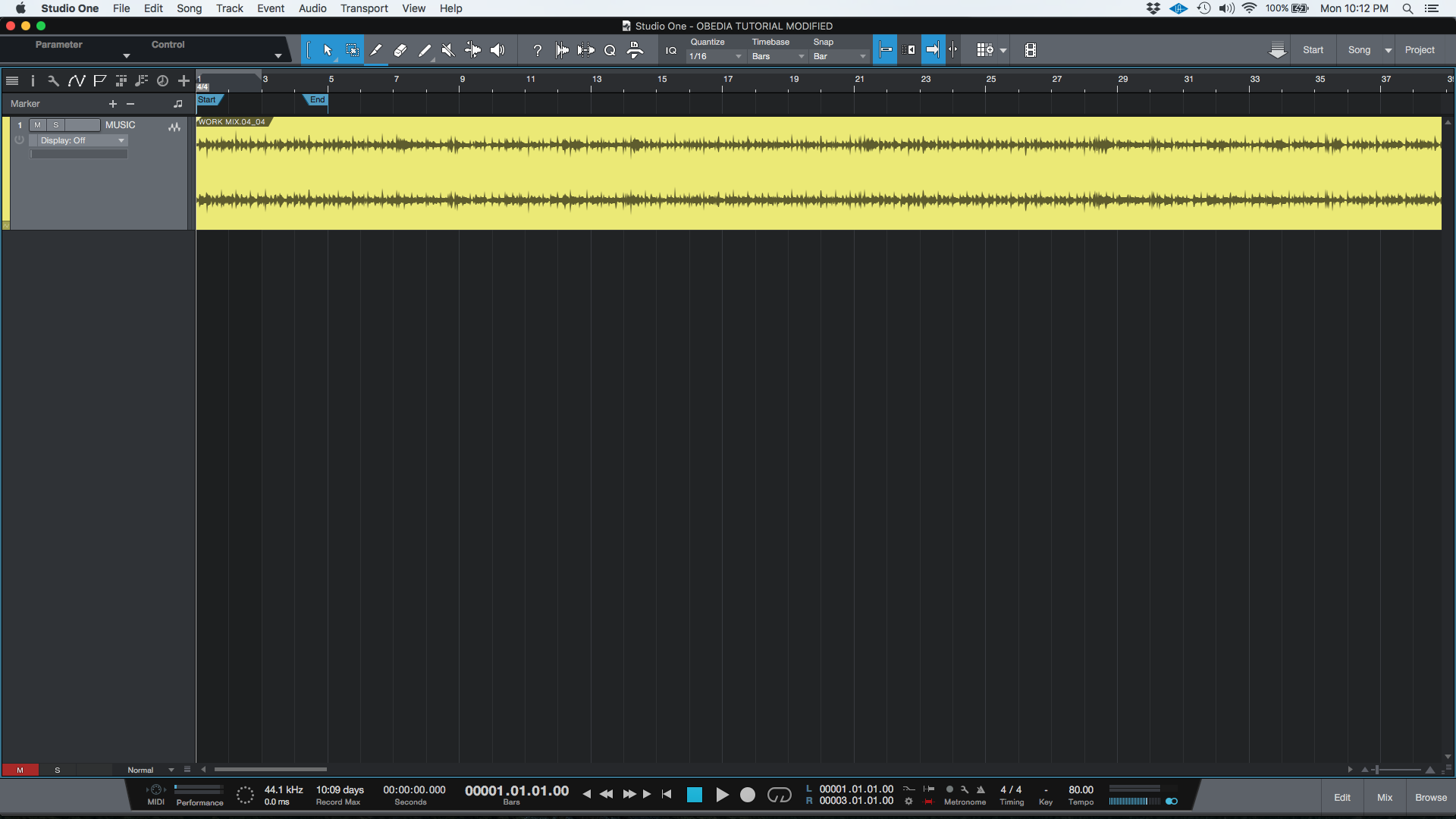
- Open or create a new Studio One 4 song:
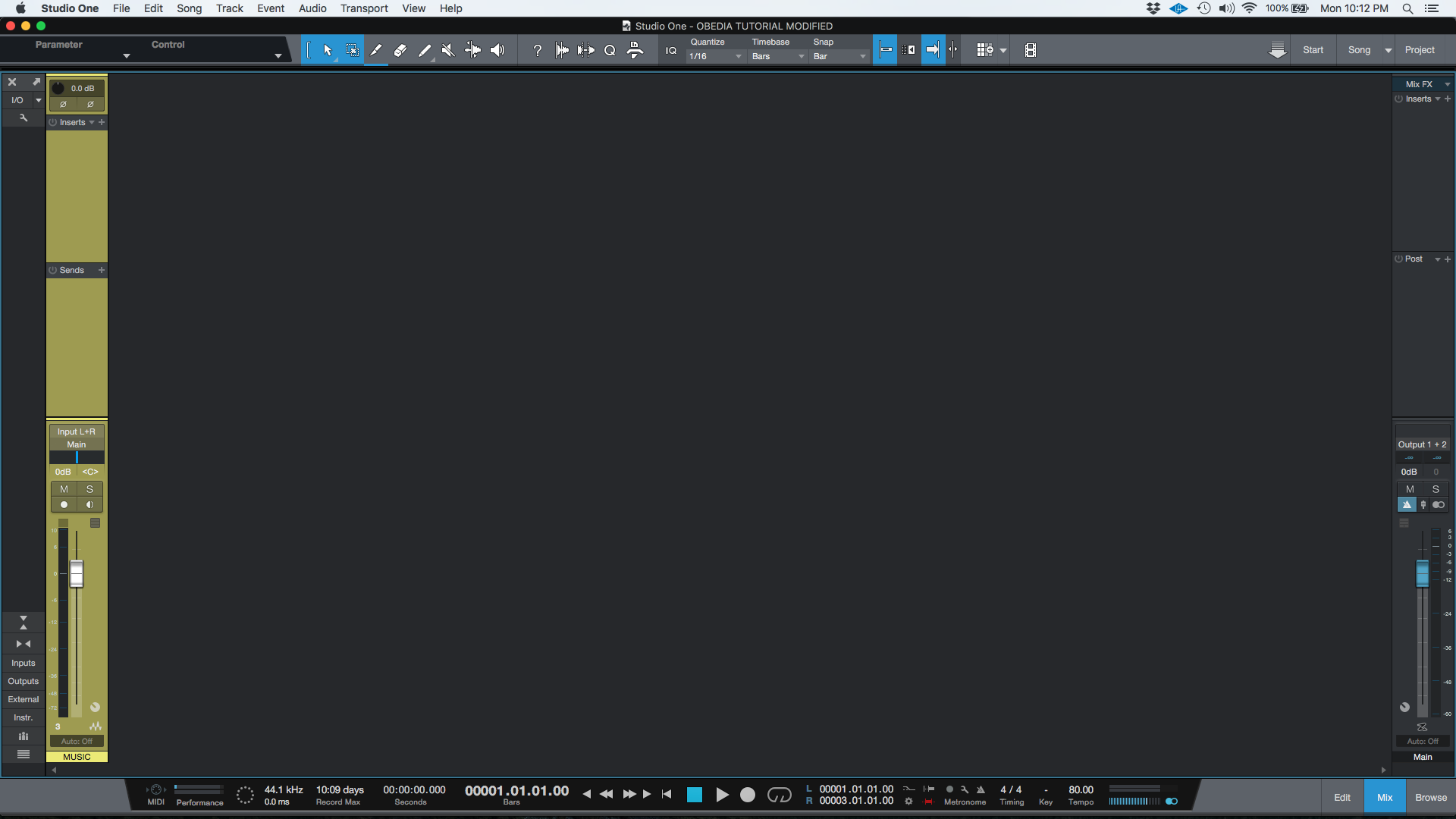
2. Open and maximize the MIX tab:
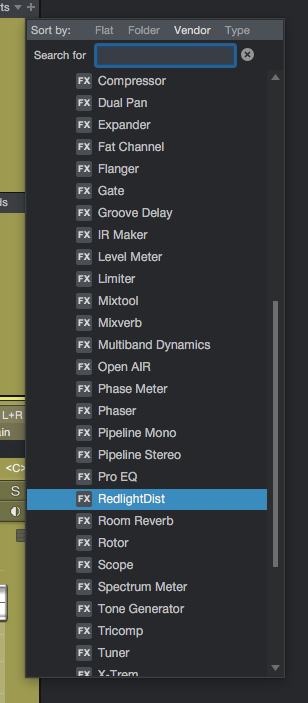
3. From the inserts list of the track, select “RedLightDist”:
The RedLightDist plugin window will open as:
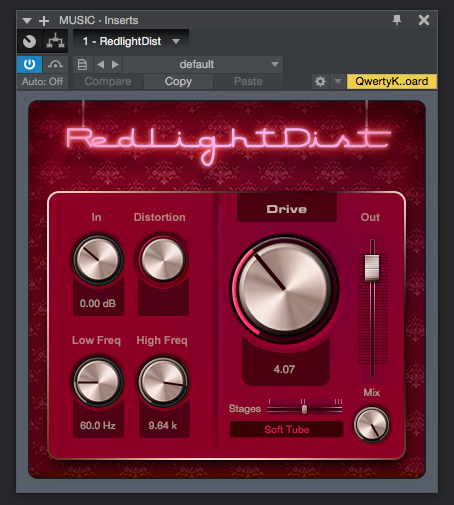
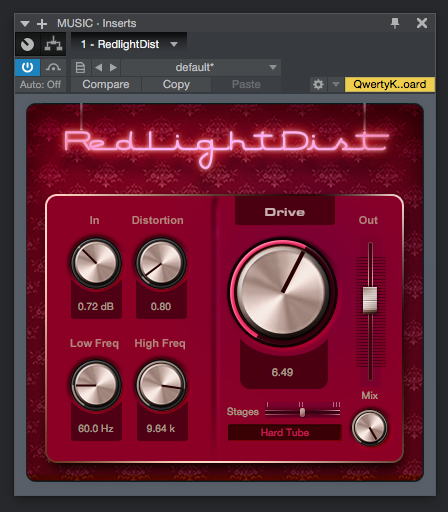
It is easy to see from the previous picture, the RedLightDist plugin has several parameters that can be explained as:
- In: This knob sets the input gain to the insert.
- Distortion: Only works on “Hard” and “Bad Tubes” modes. This knob resembles the purpose of the bias.
- Low Freq: This knob filters frequencies below the selected value from the distorted signal.
- High Freq: This knob filters frequencies above the selected value from the distorted signal.
- Drive: This knob sets the amplification during overdrive.
- Stages: This slider sets the amount of overdrive stages.
- Modes: This dropdown list lets the user select the distortion mode.
- Out: This slider adjusts the output gain of the insert.
- Mix: This knob adjusts the amount of affected versus unaffected signal coming out of the insert.
For the purpose of this tutorial, we will use the RedLightDist at a high distortion setting. The RedLightDist will be set as:
- In: 0.72 dB.
- Distortion: 0.80.
- Low Freq: 60 Hz.
- High Freq: 9.64 KHz.
- Drive: 6.49.
- Stages: II.
- Modes: Hard Tube.
- Out: -2.
- Mix: 100%.
4. Apply the previous configuration, and the RedLightDist plugin should look like this:
At this point we have successfully explained how to use and configure the RedLightDist plugin in Studio One 4. The tutorial has now finished.
Using Presonus Studio One 4 software to produce music would be ideal with one of our professionally designed PCAudioLabs Systems due our high-performance specifications in order to work with any of the Digital Audio Workstations supported. If you would like to order one of our PCAudioLabs computers, please call us at 615-933-6775 or click this link for our website.