
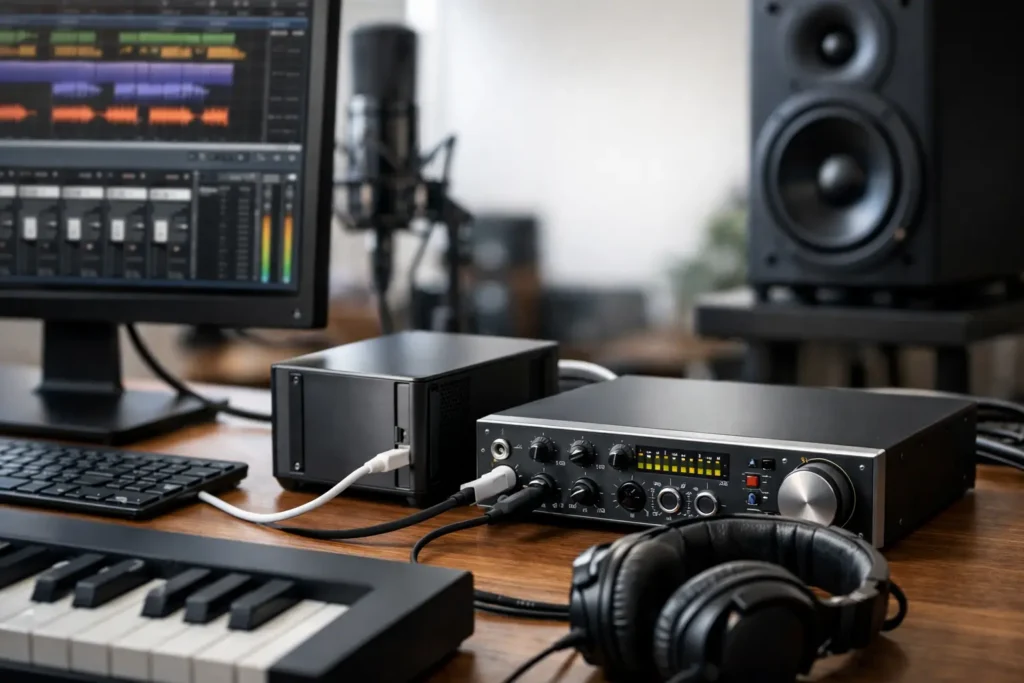
If you are planning a Thunderbolt audio PC setup, the biggest mistake is treating Thunderbolt like a simple port spec. On a production machine, it is part of a larger chain that includes the motherboard, controller implementation, BIOS behavior, chipset, drivers, cabling, and the audio interface itself. When that chain is right, Thunderbolt can be fast, dependable, and low-latency. When it is not, you get the kind of intermittent problems that waste sessions.
For audio work, that difference matters more than it does in general computing. A system can look great on paper and still behave poorly once you add a Thunderbolt interface, a demanding DAW session, virtual instruments, and real-time monitoring. That is why a good build starts with compatibility first and feature lists second.
What a Thunderbolt audio PC setup actually needs
A professional Thunderbolt audio PC setup is not about chasing the highest benchmark number. It is about maintaining stable communication between your interface and the rest of the system at the buffer sizes your workflow requires. Recording live inputs at low latency puts very different pressure on a computer than editing audio offline or exporting stems.
That means the right CPU still matters, but so do less glamorous details. Motherboard design, PCIe resource allocation, USB and Thunderbolt controller behavior, and memory stability all affect how consistently the machine performs. In audio production, a small instability can show up as pops, dropouts, device disconnects, or a system that only behaves well at larger buffers.
Thunderbolt also tends to expose weak platform choices quickly. Some boards advertise Thunderbolt support but depend on add-in cards, header requirements, BIOS settings, and firmware combinations that are far less predictable than a native, well-tested implementation. For a studio machine, predictable beats theoretical flexibility.
Start with the motherboard, not the port
This is the decision that shapes the rest of the build. Not every motherboard with Thunderbolt support is equally suitable for professional audio. Some have integrated Thunderbolt that is generally cleaner to deploy. Others rely on optional add-in cards that may work well in one configuration and become difficult in another.
For DAW use, the best outcome usually comes from platforms that have already proven stable with the exact class of interface you plan to use. That sounds obvious, but it is where many self-built systems go sideways. Builders compare CPUs, RAM speed, and storage, then assume Thunderbolt compatibility is universal. It is not.
A board can have the right connector and still produce frustrating results if the implementation is inconsistent. Sleep behavior, device hot-plug reliability, boot order issues, and intermittent recognition problems are all common signs that the Thunderbolt layer was never validated for demanding production use. In a studio, those are not minor annoyances. They cost time, focus, and trust in the system.
Why certified support still is not the whole story
Thunderbolt certification helps, but it does not guarantee that every interface, DAW, and driver combination will behave the same way. Audio is a narrower use case than general peripheral support. A storage device connecting properly does not tell you much about how an interface will perform at 64 or 128 samples during a tracking session.
That is why tested compatibility matters more than checkbox compatibility. In practice, real-world validation with audio hardware is worth more than a generic claim that the board supports Thunderbolt 3 or 4.
CPU, RAM, and storage still matter
Once the platform is right, the rest of the hardware needs to support your workload without creating unnecessary complexity. For audio production, modern multi-core CPUs are excellent, but more is not always better if your sessions rely heavily on real-time performance and low buffer operation. Some workflows benefit from higher clock speed and efficient core scheduling more than from simply adding core count.
RAM should be sized around your actual session demands. If you work with orchestral templates, sample-heavy production, or post sessions with large track counts, extra memory is useful. If your work is mostly recording, editing, mixing, and moderate plugin use, stability is usually more valuable than pushing aggressive memory speeds.
Storage should be fast enough that it disappears as a bottleneck. A solid NVMe system drive paired with dedicated project or sample storage is a practical approach. The goal is not maximum spec-sheet speed. It is consistent performance while the DAW, sample libraries, video assets, and background tasks all compete for resources.
BIOS and system tuning can make or break the setup
A Thunderbolt audio PC setup often succeeds or fails in the BIOS before the DAW is even installed. Default settings are designed for broad consumer use, not real-time production. Power management behavior, PCIe settings, integrated device configuration, and Thunderbolt security options all affect how the machine behaves under load.
This is where many creators lose time. They can assemble the hardware, install Windows, and even get audio passing, but the machine still feels unpredictable. It may click under stress, fail to reconnect the interface cleanly after reboot, or perform differently from one session to the next.
There is no single universal BIOS recipe because the right settings depend on the motherboard, CPU platform, interface model, and workload. That said, the pattern is consistent. Stable production systems come from tested settings, not trial and error during paying work.
Windows optimization matters, but it should be targeted
Audio professionals have heard every Windows tweak list on the internet. Some are useful. Some are outdated. Some create new problems. The right approach is targeted optimization based on your exact hardware and software.
For example, background power behavior, selective suspend settings, driver order, and unnecessary startup processes can all affect real-time performance. But aggressive stripping of services or random registry changes is rarely the answer on a modern production system. The best systems are optimized carefully, then left alone.
Choosing the right Thunderbolt interface for the PC
Not all Thunderbolt interfaces are equally forgiving on Windows. Some manufacturers maintain very mature Windows driver support and clear qualification guidance. Others are more dependent on narrow platform combinations. Before choosing the computer, it helps to know which interface you plan to use and how demanding your workflow is.
If your work depends on real-time monitoring through plugins, cue mixes, and low buffer tracking, driver quality matters as much as converter quality. A great-sounding interface with inconsistent Windows behavior is still a bad fit for a production PC. On the other hand, if your sessions lean more toward editing, mixing, composition, or post production at moderate latency settings, your acceptable range may be wider.
This is where system design becomes workflow design. The best setup for a composer with large templates is not always the best setup for a tracking room running punch-ins all day. Both may need Thunderbolt, but they stress the system differently.
Cables, adapters, and expansion are not minor details
Thunderbolt is sensitive to chain quality. A questionable cable, a poorly chosen adapter, or an overloaded bus can introduce problems that look like driver instability. In reality, the issue may be physical layer reliability or how devices are sharing bandwidth and controller resources.
For studio use, keep the signal path simple. Use known-good Thunderbolt cables of appropriate length, avoid unnecessary adapters, and be cautious about chaining storage, docks, and displays with the same controller path as the interface. It can work, but it depends on the exact hardware and usage pattern.
Expansion planning matters too. If you need UAD processing, high-speed external storage, video I/O, and a Thunderbolt audio interface, the platform should be selected around that full picture. Adding those pieces later without considering PCIe lane usage and controller behavior is how stable systems become unpredictable ones.
Why pre-validated builds save time
A lot of creators can assemble parts. Far fewer want to spend days verifying BIOS revisions, testing firmware combinations, managing driver versions, and troubleshooting edge-case Thunderbolt behavior. That is the hidden cost of a self-built workstation.
For professional use, a validated system has real value because it removes uncertainty before the machine ever reaches the studio. PCAudioLabs approaches this the way production users need it approached – as a complete workstation problem, not a pile of compatible-looking parts. That distinction matters when your interface, DAW, plugins, and deadlines all need to coexist without drama.
The best Thunderbolt audio PC setup is the one you can trust
There is no single best Thunderbolt build for everyone. The right system depends on the interface, DAW, session size, latency target, and expansion needs. But the common thread is simple: Thunderbolt audio on Windows works best when the platform is chosen and configured as a tested production environment, not a generic high-performance PC.
If your machine is for serious recording, mixing, composition, or post work, trust should be the goal. Fast is useful. Quiet is important. Expandable is helpful. But a system that shows up every day, recognizes the interface correctly, runs the session cleanly, and stays out of your way is the one that earns its place in the studio.