
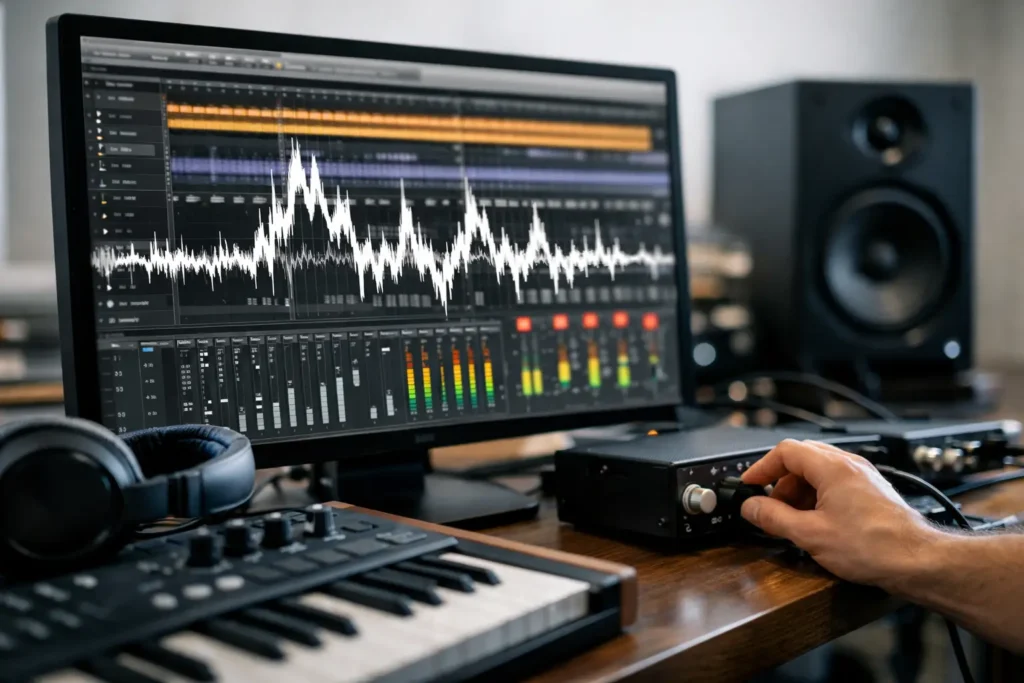
Nothing kills confidence in a session faster than hitting play and hearing random pops, crackles, or brief bursts of distortion in the monitors. If you’re asking, why does my daw crackle, the answer is usually not one single failure. It is almost always a timing problem somewhere between your interface, driver, DAW, plugins, and computer.
That matters because crackling is not just an annoyance. It is your system telling you that audio is not being processed cleanly in real time. Sometimes the fix is simple, like raising the buffer. Other times it points to a deeper issue such as a driver problem, unstable USB behavior, excessive DPC latency, or a machine that is technically powerful on paper but not tuned for production.
Why does my DAW crackle during playback or recording?
A DAW crackles when the system cannot deliver audio data fast enough, consistently enough, or cleanly enough. Digital audio is unforgiving. If the CPU, interface, or driver misses its timing window, you hear it as a pop, click, or crackle.
In practice, that can happen for a few different reasons. A low buffer setting can push latency down for tracking, but it also gives the system less time to process plugins and route audio. A heavy virtual instrument session can overload one core even when overall CPU usage looks acceptable. An interface driver may be outdated or simply not perform well under demanding low-latency work. Even background system activity can interrupt the audio stream long enough to create artifacts.
This is why two computers with similar specs can behave very differently in the same DAW session. Raw specs matter, but tested compatibility and system optimization matter just as much.
Start with the most common cause: buffer size
If crackling shows up while tracking at low latency, your buffer is the first place to look. Smaller buffers reduce delay between input and output, but they increase real-time pressure on the CPU. That trade-off is normal.
A vocalist monitoring through a software chain at 32 or 64 samples may be fine in a light session. Add amp sims, oversampling, linear-phase processors, or a few demanding virtual instruments, and the system may stop keeping up. The result is crackling even though the session worked earlier in the day.
For recording, use the lowest stable buffer your system can handle. For mixing, raise it. There is no prize for mixing a 150-track session at 64 samples. Give the machine more breathing room when latency is no longer critical.
Low latency is not always the right goal
Many users chase the smallest possible buffer because it feels like the “pro” setting. In reality, professional workflows are about stable performance, not extreme settings for their own sake. If 128 or 256 samples keeps a session clean while still feeling responsive enough, that is often the better choice.
Drivers and interface behavior matter more than many users realize
A lot of crackling problems trace back to the audio interface path rather than the DAW itself. On Windows, the correct ASIO driver is usually essential. If you are using a generic driver layer, shared system audio mode, or an outdated interface driver, crackling can appear even in modest sessions.
Not all interfaces behave the same way under load. Some drivers stay stable at low buffers with dense plugin chains. Others become inconsistent the moment the session gets more demanding. Firmware can also play a role, especially with USB interfaces.
If your DAW crackles in one interface but not another, that is a useful clue. The computer may not be the primary issue. The combination of interface, driver version, USB controller behavior, and project load may be the real bottleneck.
Check sample rate and clocking
Crackles are not always caused by CPU stress. If your interface and DAW are fighting over sample rate, or if a digital device in the chain has a clock mismatch, the artifacts can sound similar. This is especially relevant if you use external converters, ADAT, S/PDIF, or aggregate digital devices.
Make sure the session sample rate matches the interface setting, and confirm which device is acting as clock master when digital connections are involved.
Plugins can cause crackling even when CPU meters look fine
This is where troubleshooting gets more nuanced. Many DAWs show average CPU activity, but real-time audio performance often depends on whether the heaviest thread finishes on time. One problematic plugin can create crackling without pushing the overall meter into the red.
Common offenders include oversampled processors, lookahead limiters, poorly optimized virtual instruments, convolution reverbs, and plugins running in bridged or incompatible formats. Some plugins are simply less efficient than others, and certain updates can change behavior.
If a session suddenly starts crackling, disable plugins in stages. Do not just look at the biggest chain visually. Start with master bus processing, then instrument tracks, then anything recently added. If the crackling disappears when one plugin is bypassed, you have a direction.
Frozen tracks and printed effects are practical tools
There is no downside to printing a sound when the part is done and the tone is right. Freezing instrument tracks, committing amp sims, or rendering heavy processing can reduce real-time load dramatically. That is not a workaround for amateurs. It is a reliable production habit when stability matters.
System interruptions can break audio in real time
A DAW does not run in isolation. If another system process interrupts audio handling at the wrong moment, you hear it. On Windows systems, this often shows up as DPC latency problems tied to Wi-Fi adapters, Bluetooth, graphics behavior, storage drivers, power management, or background utilities.
This is one reason production machines should be configured differently from general-purpose PCs. A system built for gaming, office work, or broad consumer use may include background services and hardware choices that are harmless in everyday computing but disruptive for low-latency audio.
If your crackling seems random, happens even in light sessions, or gets worse when opening other apps, system-level interruption is worth investigating. Power plans, USB power saving, wireless radios, and unnecessary startup tasks can all affect consistency.
Storage and streaming can contribute too
If you work with large sample libraries, high track counts, or video in the same production environment, storage performance can become part of the problem. Crackling caused by disk bottlenecks is less common than buffer or driver issues, but it still happens.
This usually shows up when sessions rely on streaming sample content in real time from a slow drive, an overfilled system disk, or a poorly organized external drive setup. Kontakt libraries, orchestral templates, and large post-production projects are common examples.
Fast NVMe storage helps, but layout matters too. Keeping the OS, projects, and sample libraries from competing for the same limited resource can improve consistency under load.
Why crackling gets worse as projects grow
One reason this issue feels inconsistent is that a session can sit right on the edge of stability. Add one more synth, one more bus processor, or one more background task, and the system tips over.
That does not always mean the computer is underpowered in a general sense. It may mean the build is not well balanced for the workload. Audio production is sensitive to sustained low-latency behavior, stable drivers, quiet cooling, and predictable component interaction. Those are not the same priorities you see in mainstream consumer PC marketing.
For creators running demanding DAWs every day, that distinction matters. A machine engineered and tested specifically for professional audio work tends to remove a lot of the guesswork before the first session even starts.
A practical way to isolate the cause
When users ask why does my DAW crackle, the fastest path forward is controlled testing. Change one variable at a time. Raise the buffer and test. Switch to the manufacturer ASIO driver and test. Disable the master chain and test. Try a new blank session. Move the interface to another USB port. Turn off wireless radios. Compare behavior at 44.1 kHz and 48 kHz only if your workflow allows it.
The point is not to chase random fixes. The point is to separate session load, plugin behavior, driver performance, and system-level interruption. Once you know which category the problem lives in, the fix becomes much more direct.
If the machine still crackles across multiple DAWs, multiple projects, and conservative buffer settings, that is usually a sign to look harder at the interface path, driver quality, or the underlying system design itself.
A stable DAW is not about magic tweaks. It comes from a production-ready combination of hardware, drivers, configuration, and workload discipline. When those pieces line up, crackles stop being a mystery and start looking like what they usually are – a solvable performance mismatch. If your system keeps getting in the way of the work, that is often the clearest sign that your computer should behave more like a studio tool and less like a generic PC.